
NOTE: In cases where users receive a new phone you will need to reset MFA manually so that they can configure the authenticator again. Below are the steps on how administrators can do this for them:
Please note that only admins can reset MFA for users and other admins. If an admin needs their MFA reset, they will need to ask another admin to do this for them.
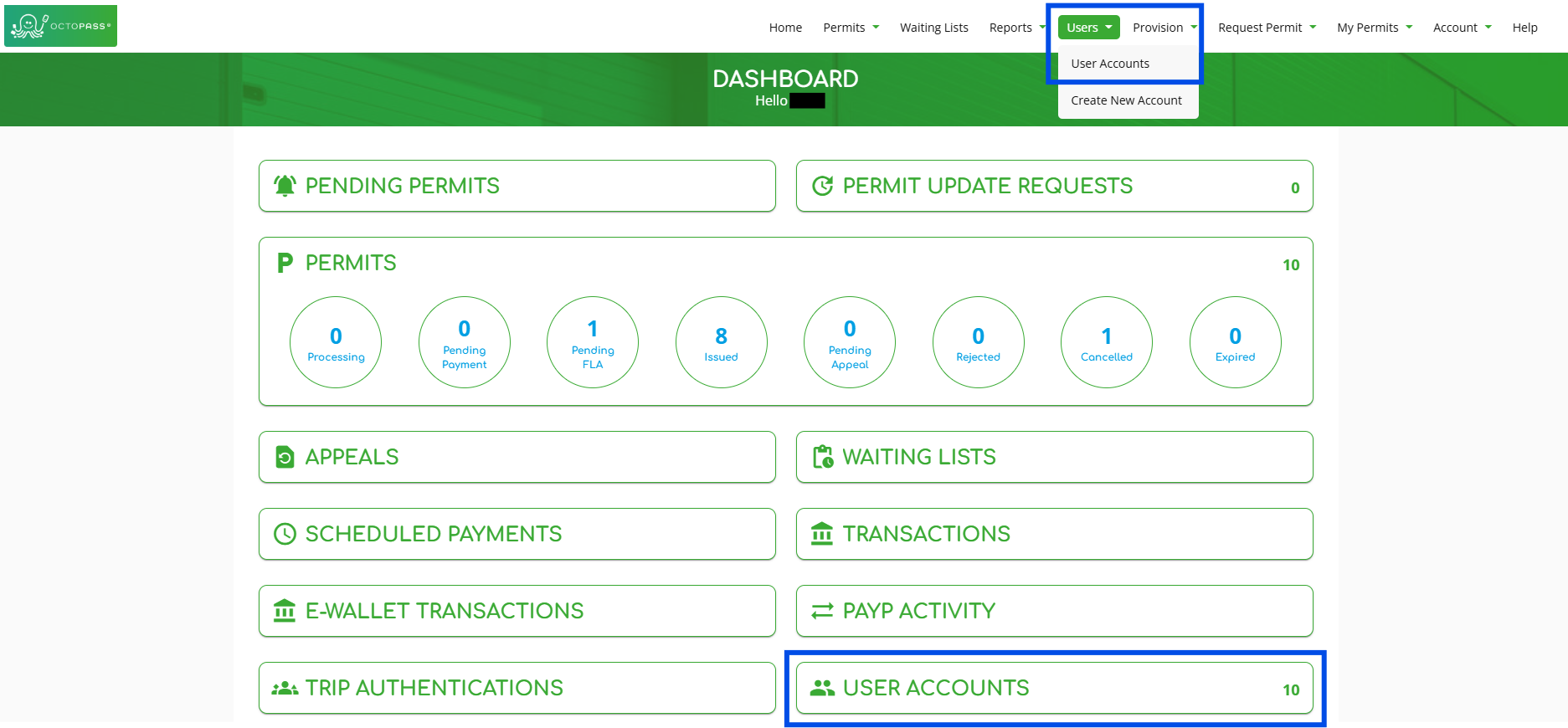
1. Log in as a user with the ‘User Administrator’ role, then click on ‘Users -> User Accounts’ as shown below. (Note: You can also click on ‘USER ACCOUNTS’ to view the user accounts directly.)
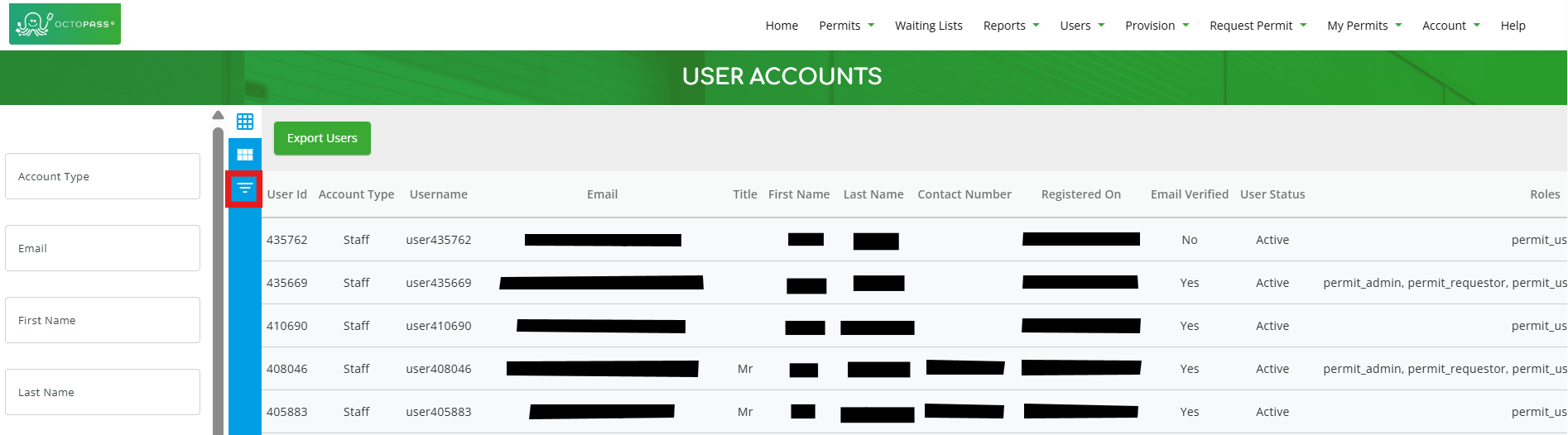
2. If needed, you can filter for specific users by clicking the icon highlighted in red below. (Note: You can click the icon again to close the filter section.)
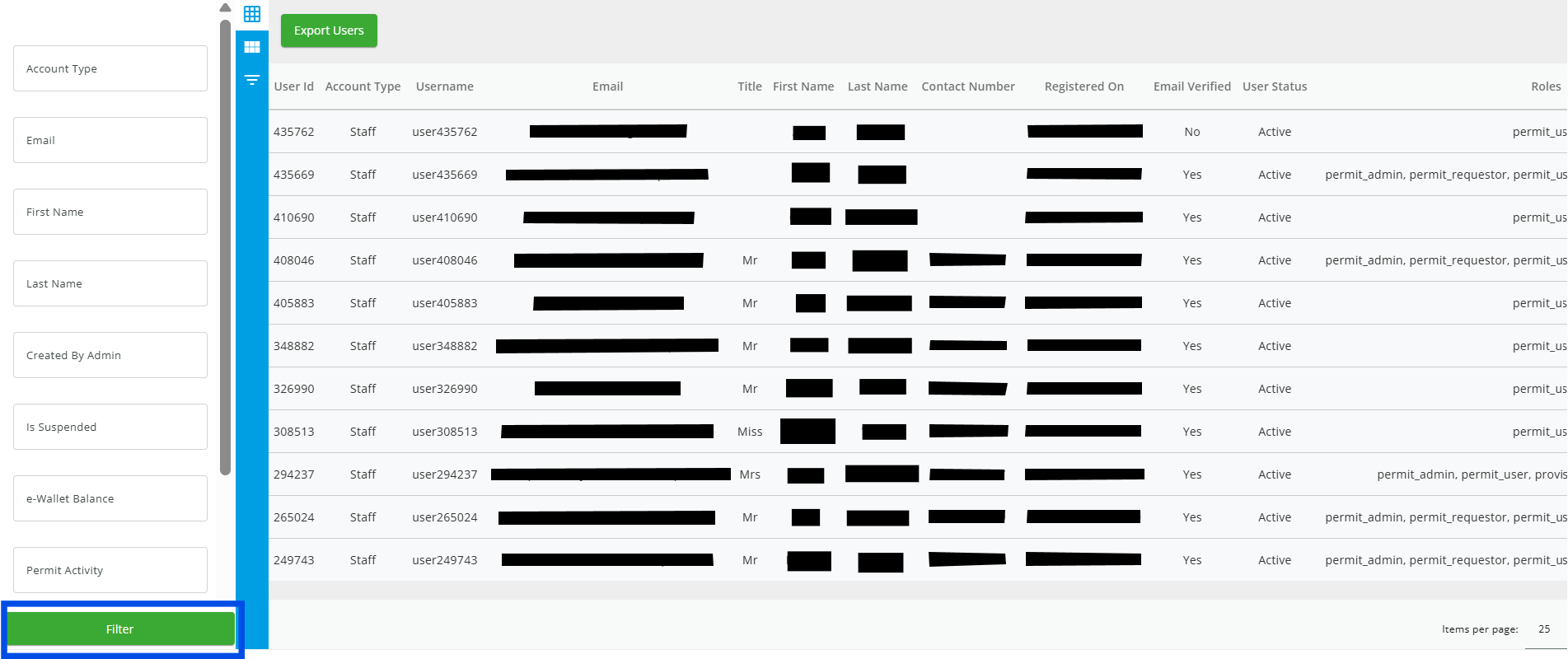
3. Once you’re done using any of the fields in the filter section, click the ‘Filter’ button at the bottom of the page to apply the filters.
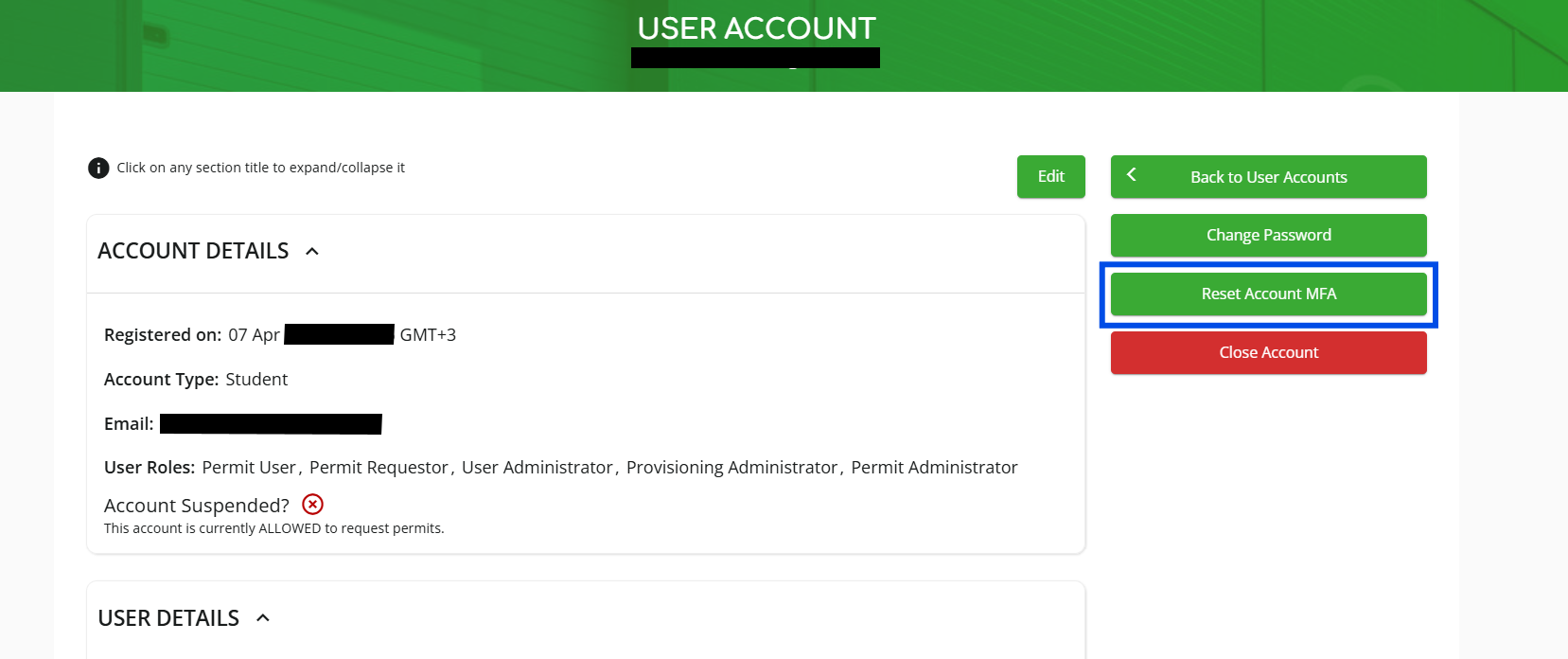
4. Select the user whose MFA you want to reset, then click ‘Reset Account MFA’.
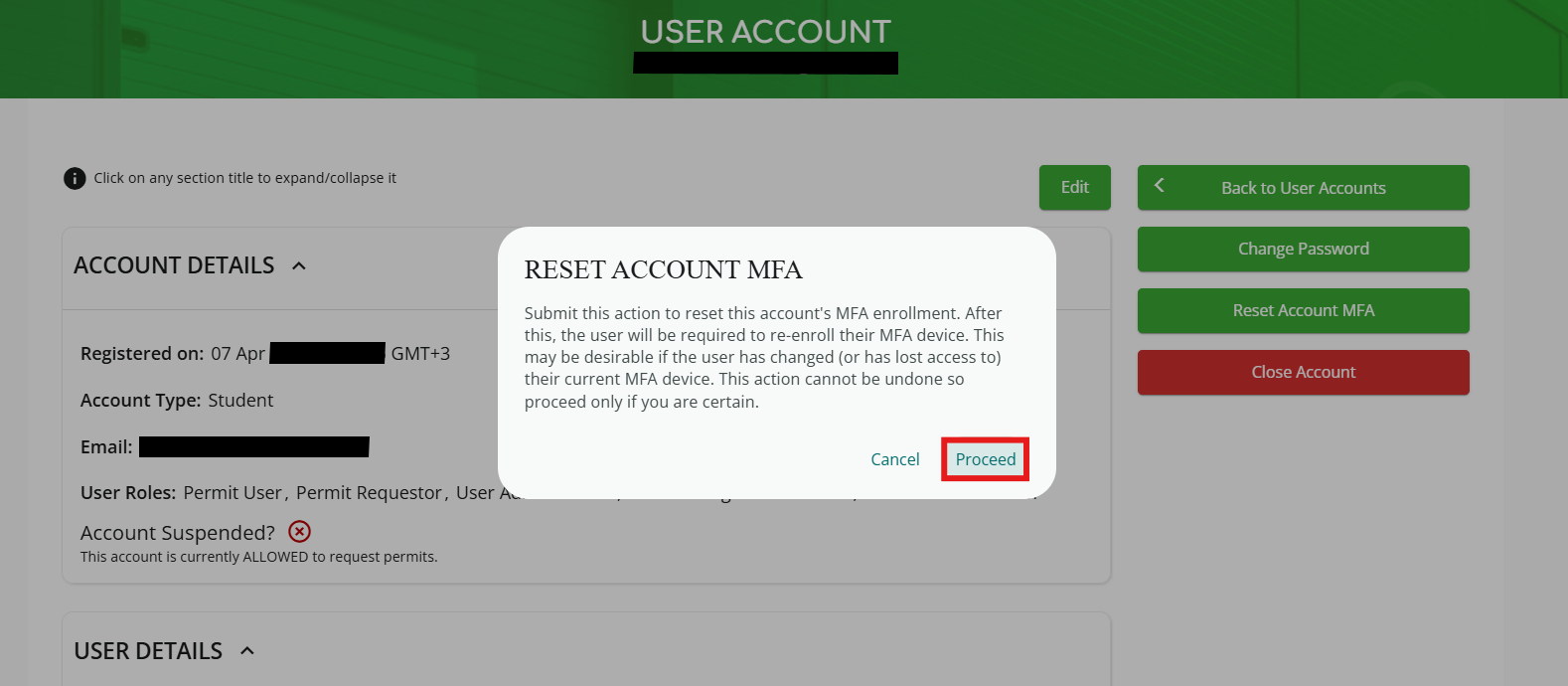
5. A pop-up will appear. Click ‘Proceed’.
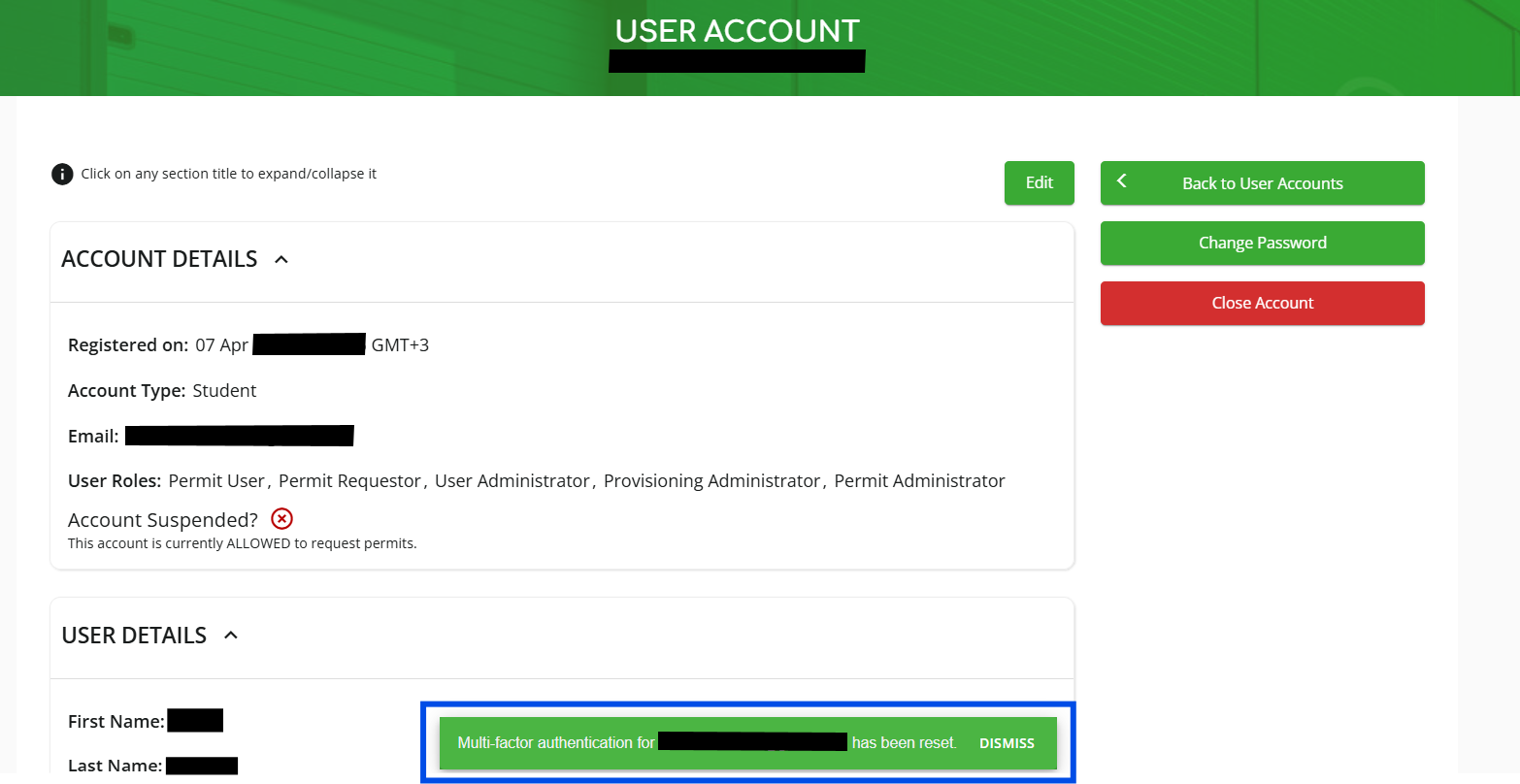
6. A notification will appear confirming that the user’s MFA has been reset, as shown below.
7. The affected user can try logging in again, but keep in mind that they will need to set up their MFA again.