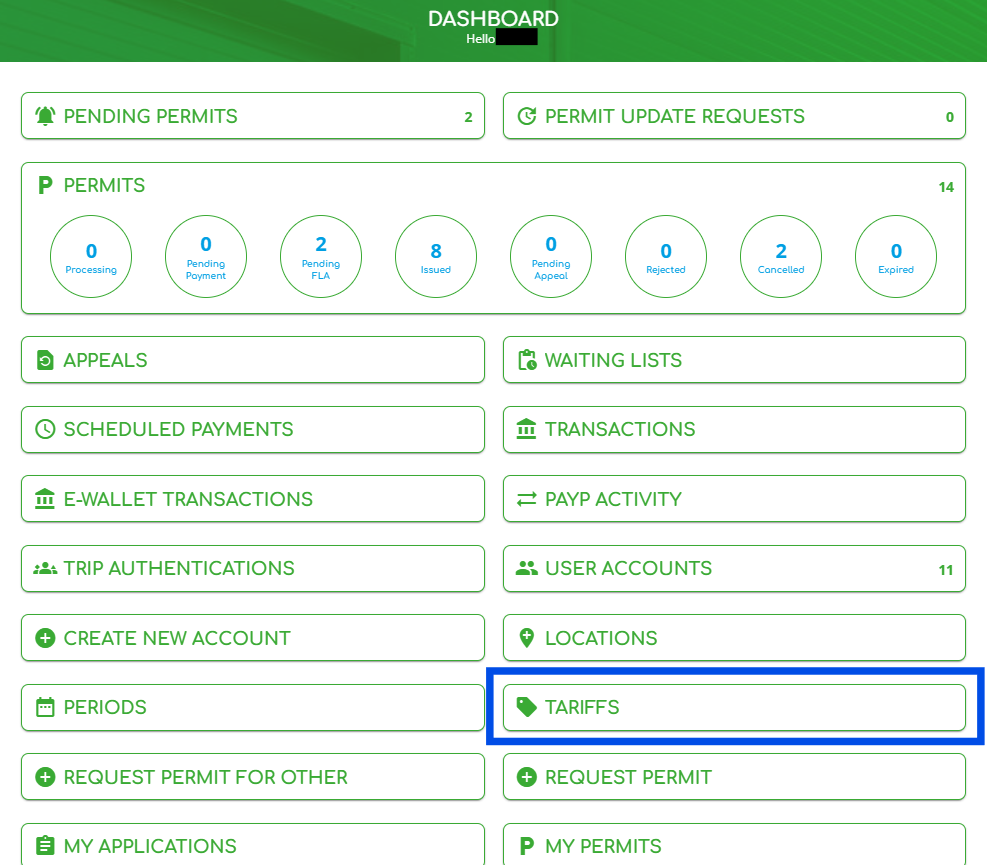
1. Log in to the dashboard as a user with the 'Provisioning Administrator' role, then click on the “TARIFFS” widget.
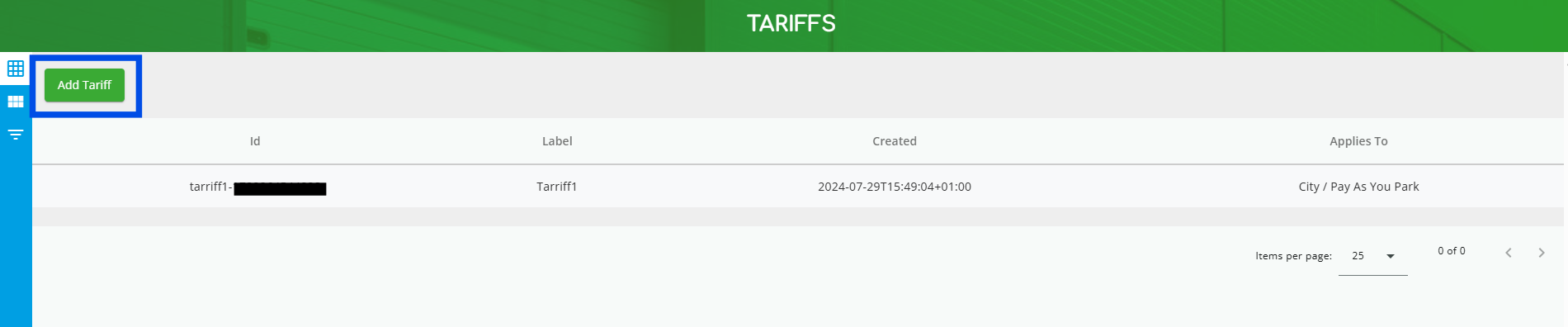
2. Click on “Add Tariff” to create a new tariff.
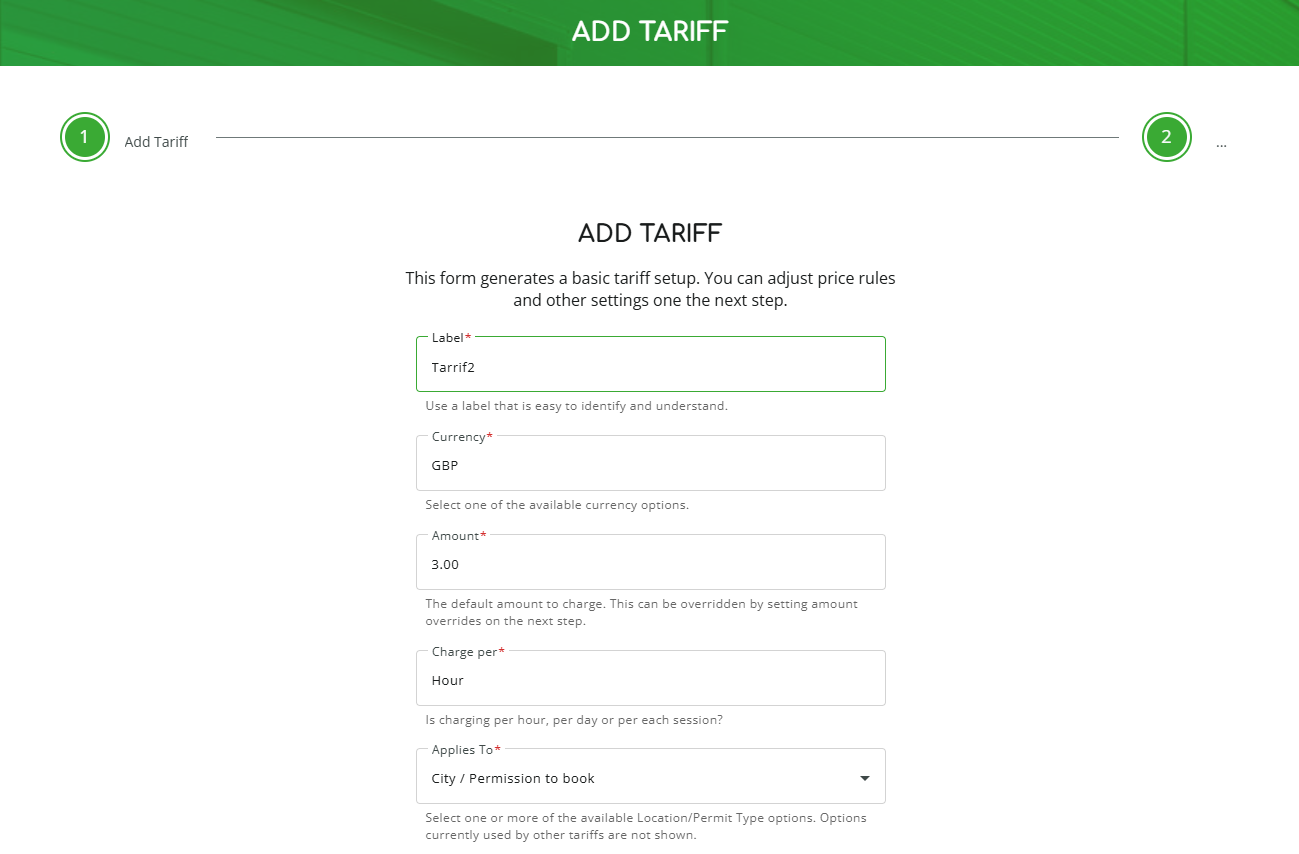
3. Fill in all the fields shown below.
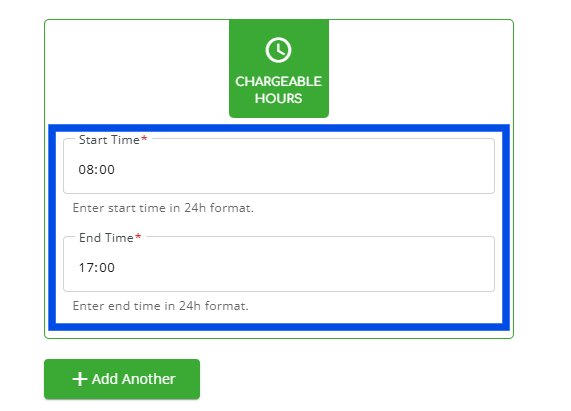
4. Enter the start and end times for when you would like the tariff to apply. Any vehicle movements received outside of these hours will be considered non chargeable.
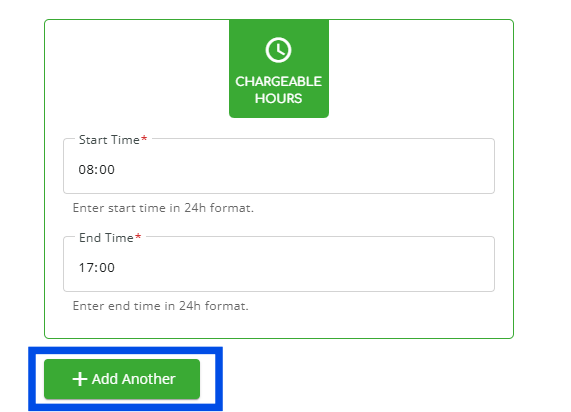
5. To add another charging period, click “+ Add Another.”
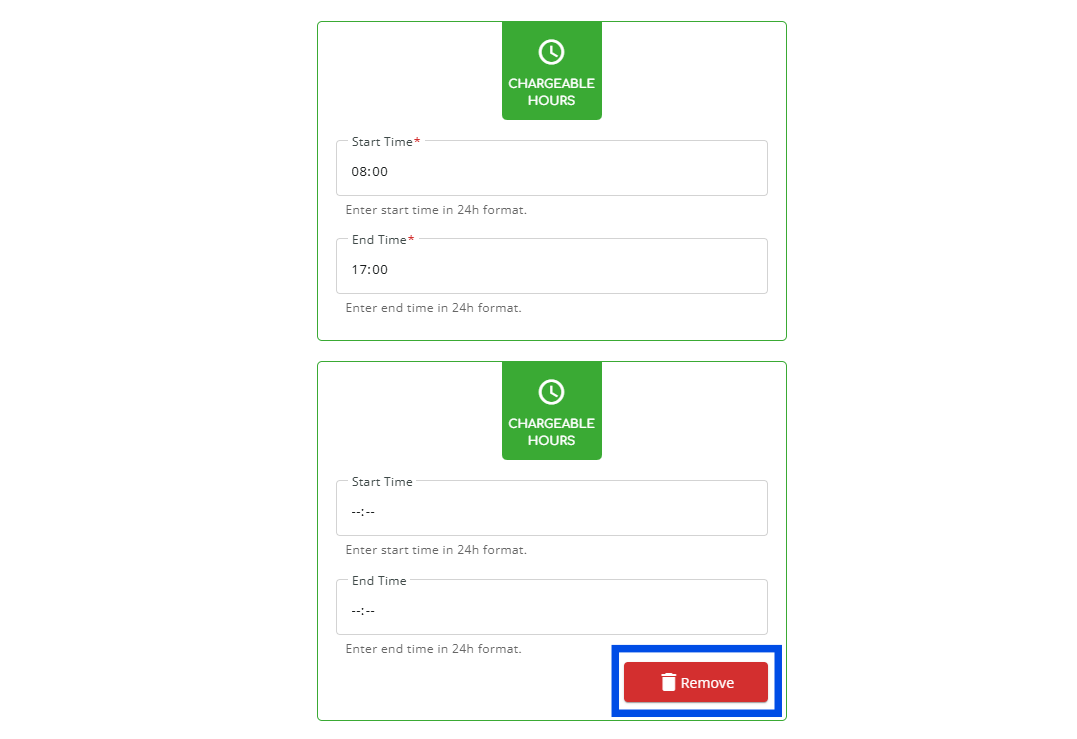
6. Click “Remove” to delete the extra period.
7. Enter the maximum parking period (in minutes) a user can stay without being charged.
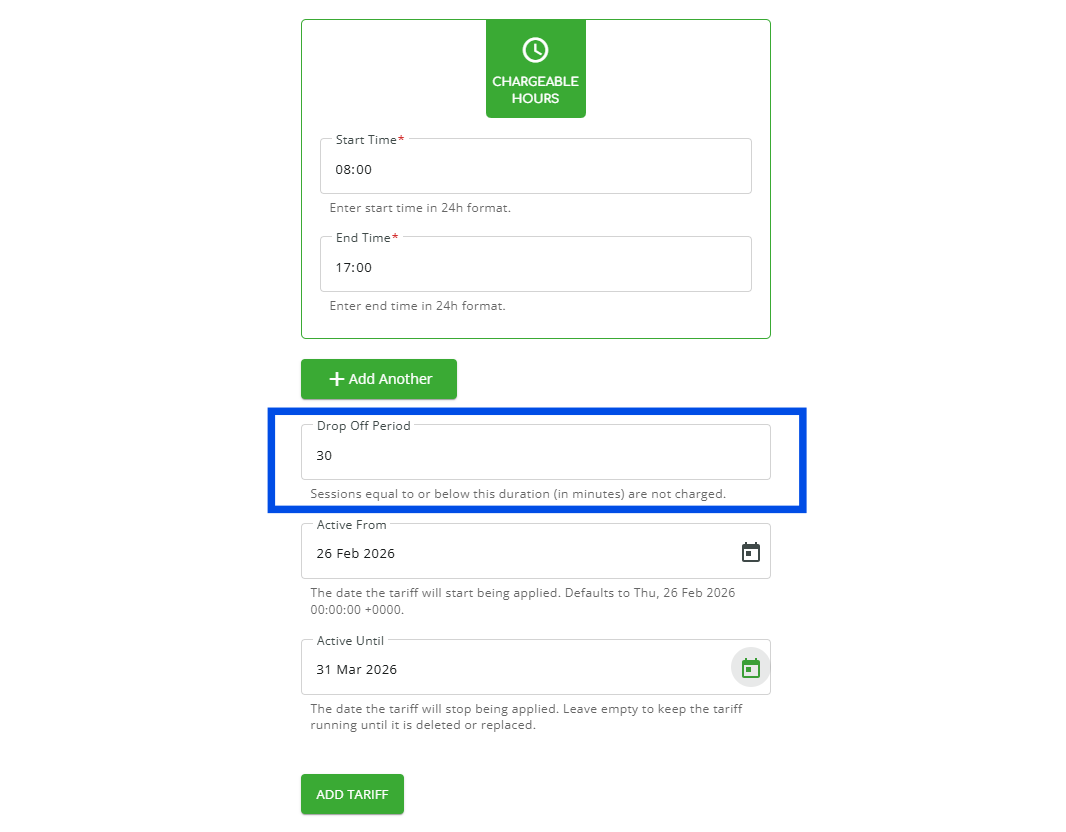
8. Set the tariff duration. (NOTE: Leaving the “Active Until” field blank keeps the tariff active until deleted or replaced.)
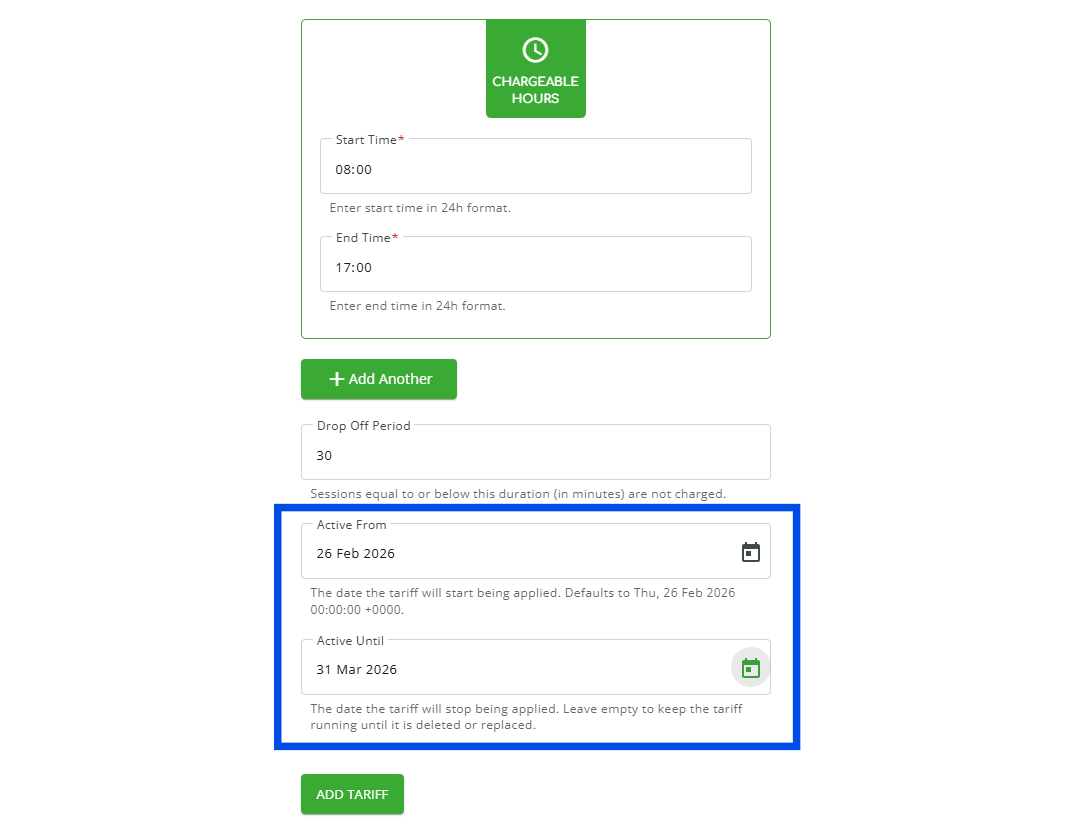
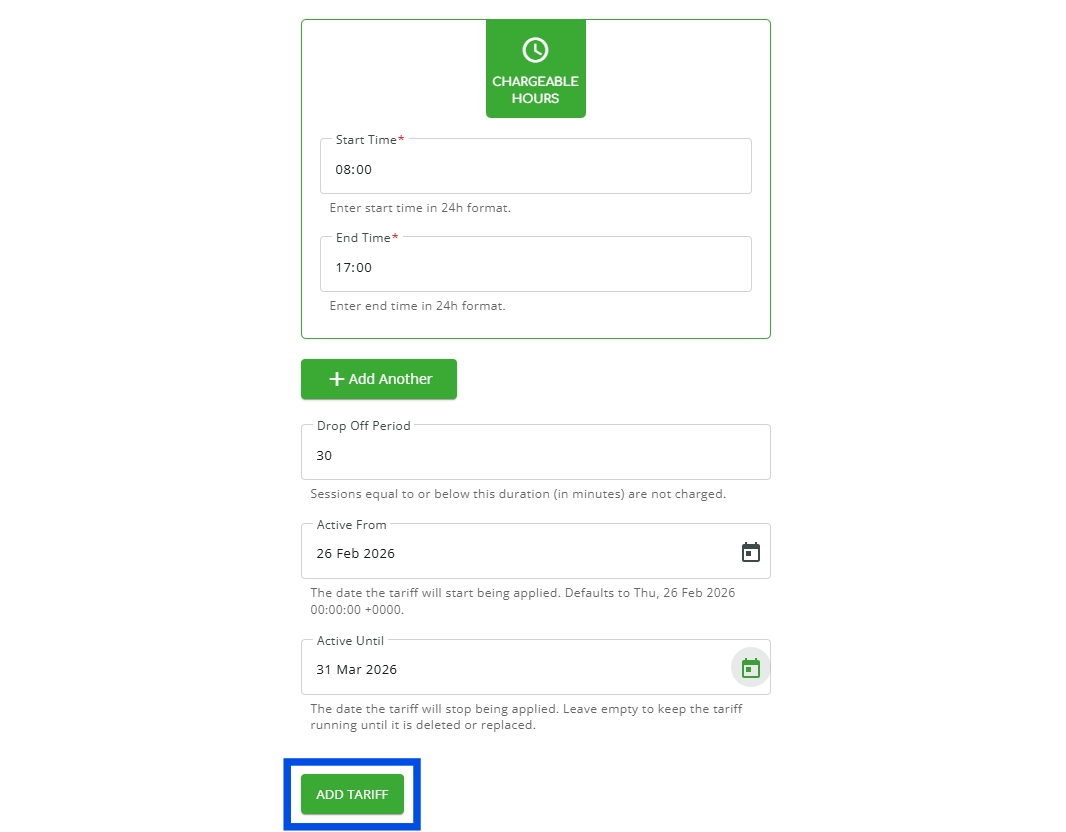
9. Then click on "ADD TARIFF" to finalise and create the tariff.
10. Once the tariff is created you can click on “Edit” to change any information.
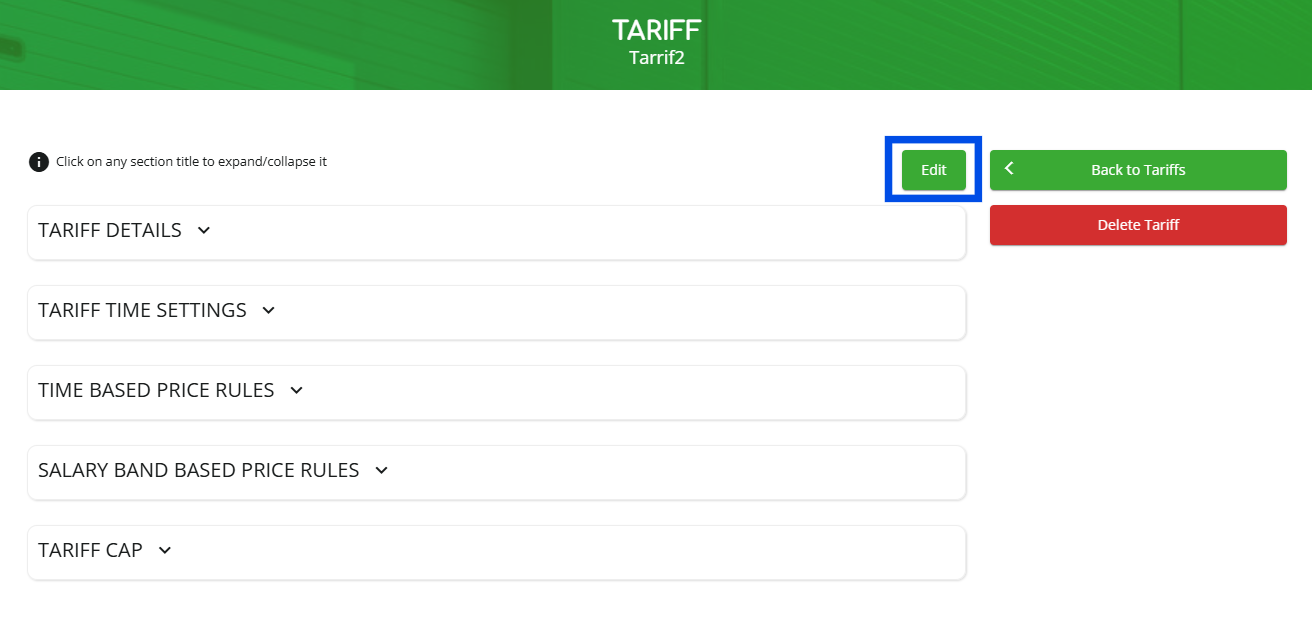
11. Additional fields such as “TIME-BASED PRICE RULES,” “SALARY BAND-BASED PRICE RULES,” and “TARIFF CAP” can be configured after creating the tariff, as shown below. (NOTE: The following fields are all optional.)
TIME-BASED PRICE RULES
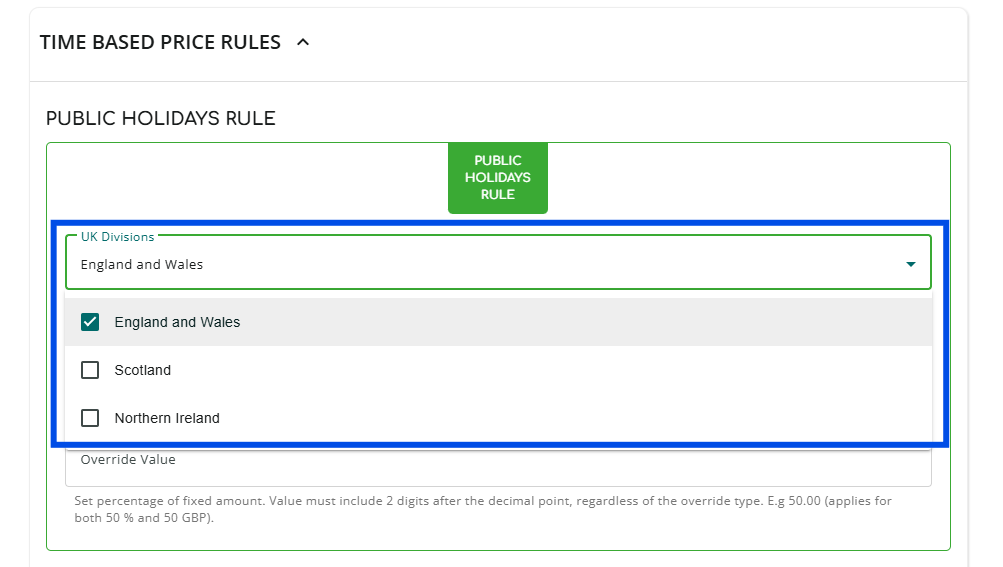
How to configure the "PUBLIC HOLIDAYS RULE":
- Under the "PUBLIC HOLIDAYS RULE" section, click "UK Divisions" and select the regions to which you would like the rule to apply.
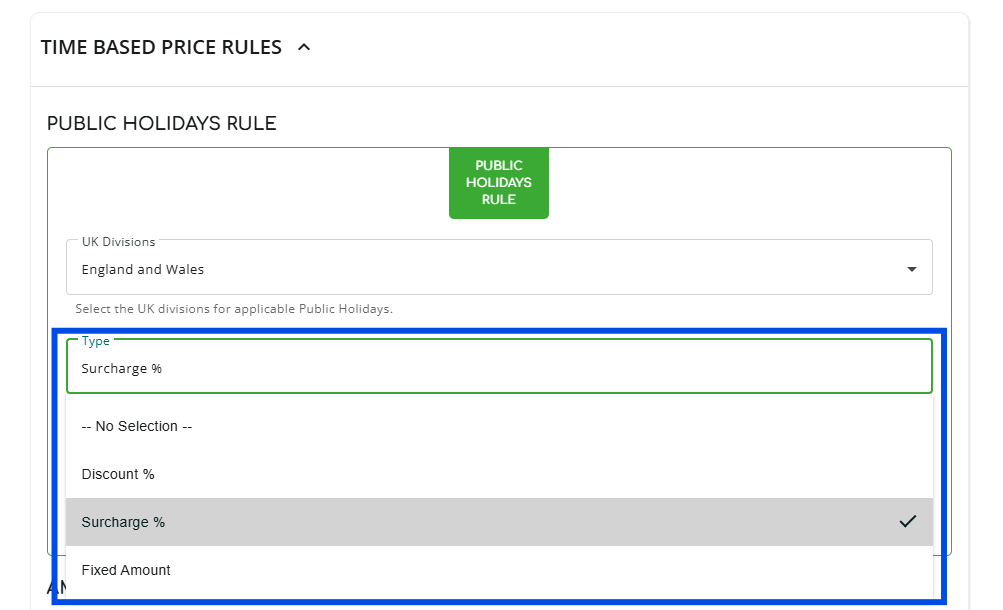
- Click on "Type" and select the rule that you wish to apply.
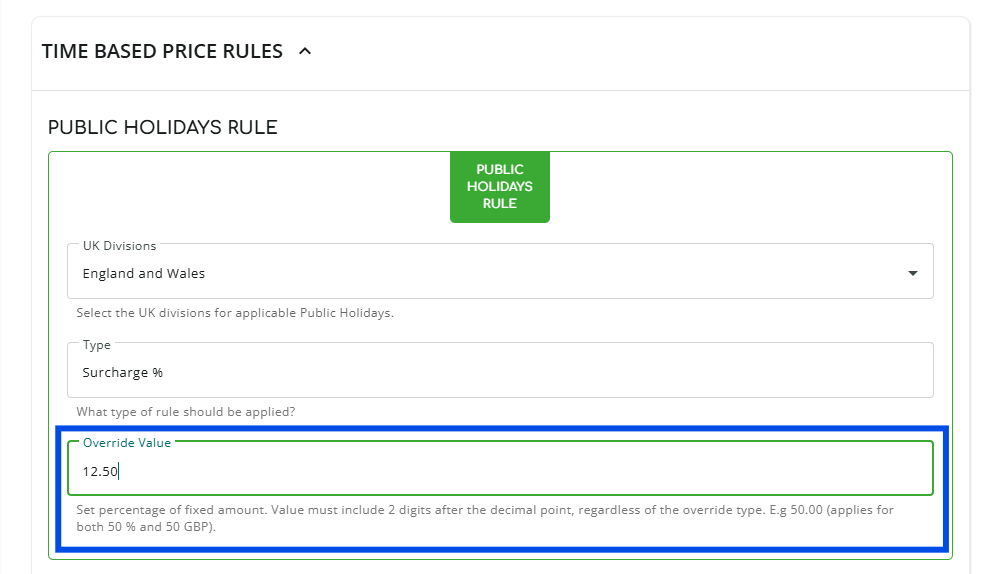
- Click on "Override Value" to set the override value. (NOTE: The value must be entered to 2 decimal places.)
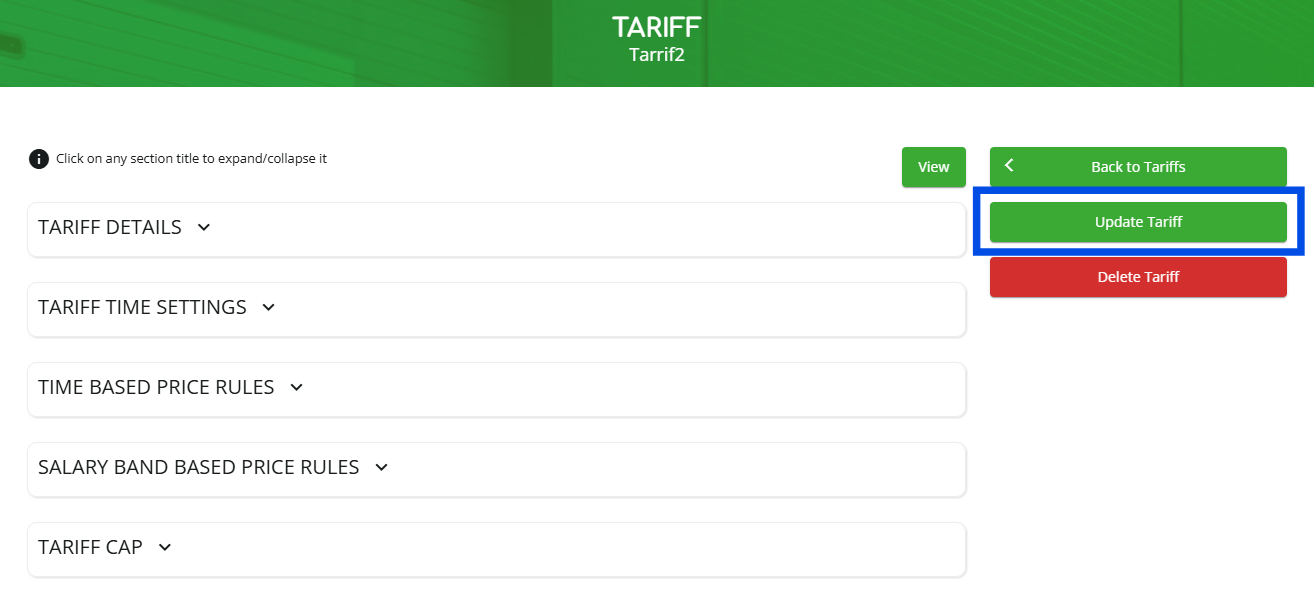
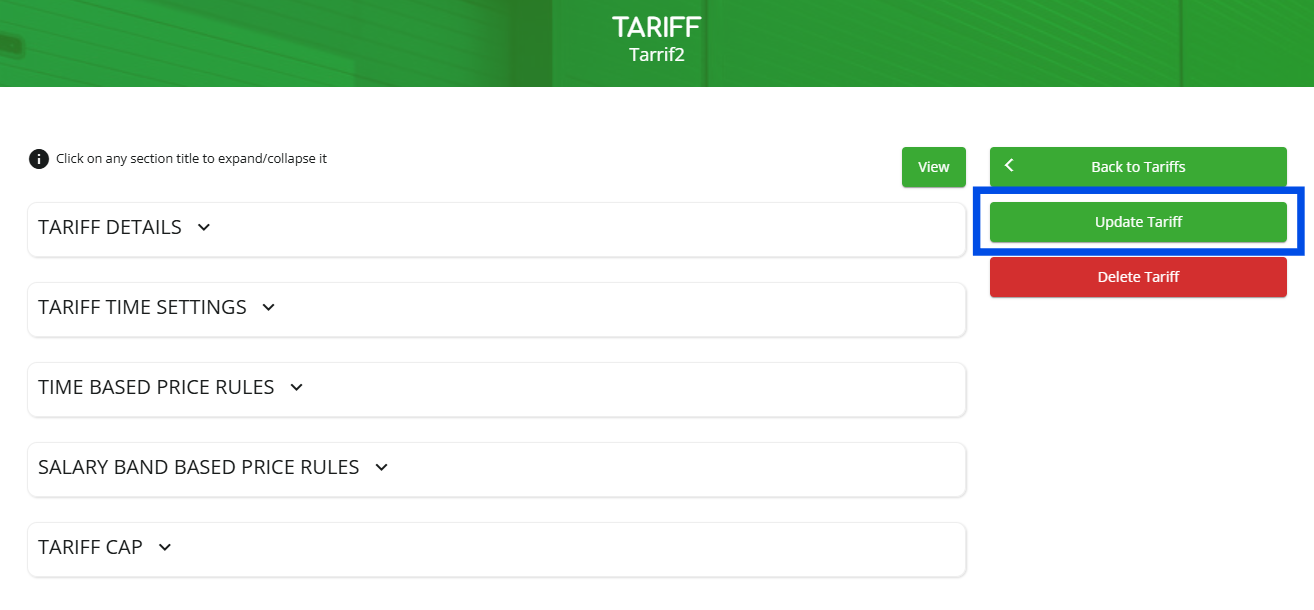
- After updating any of the desired fields, click on “Update Tariff” to save the changes.
How to configure "AMOUNT OVERRIDES":
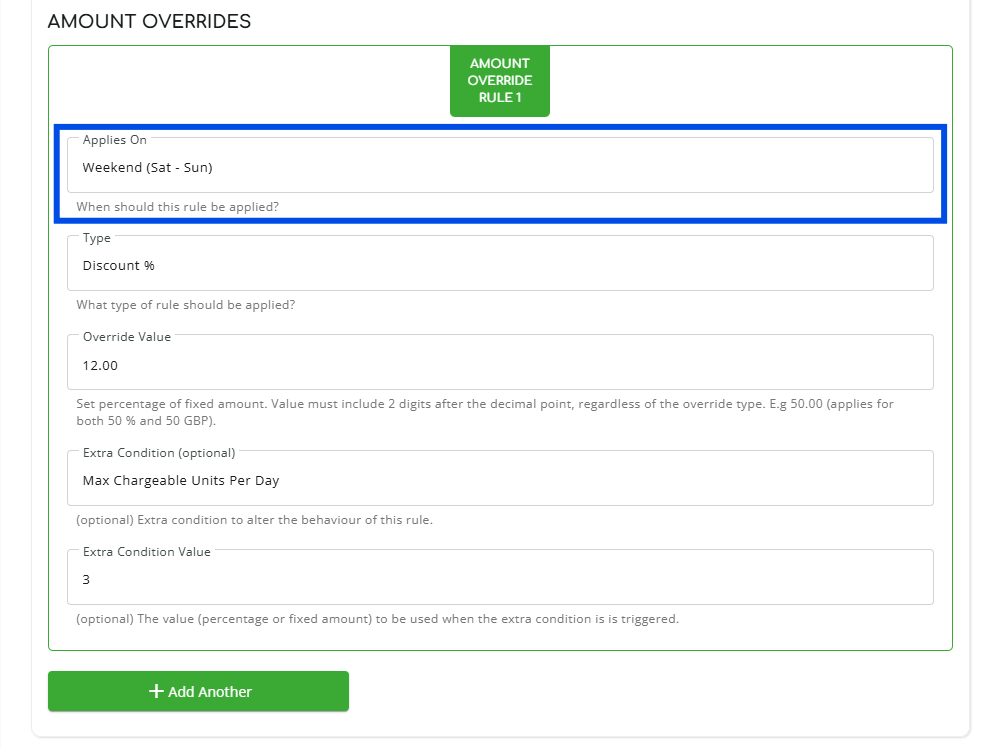
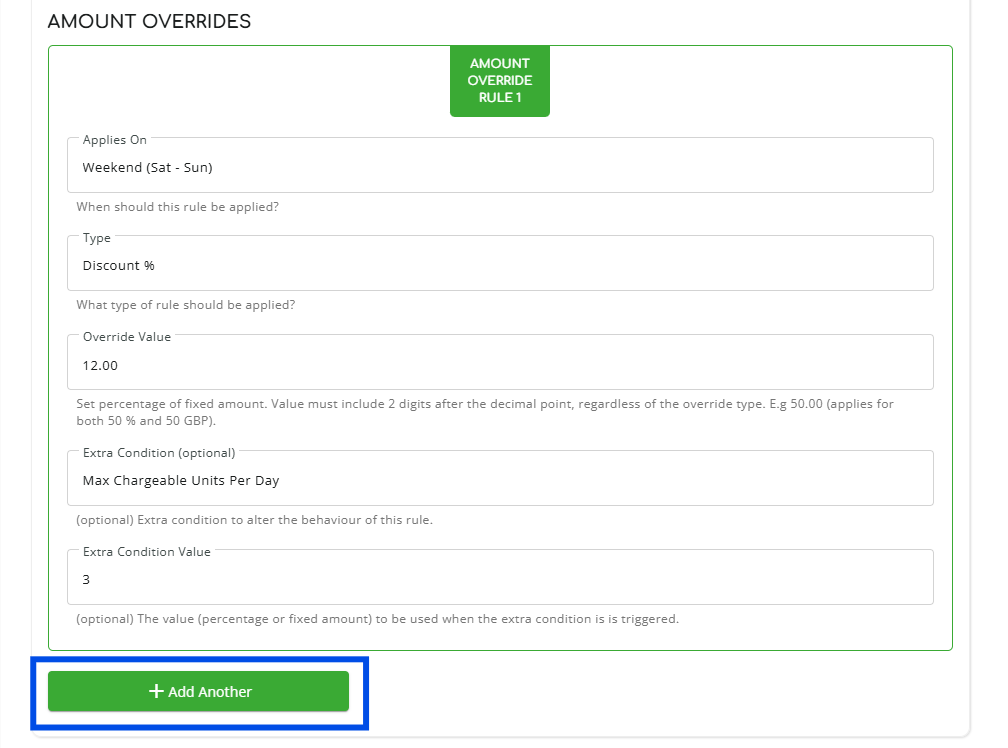
- Under the "AMOUNT OVERRIDES" section, click on "Applies On" to select when the amount override rule applies.
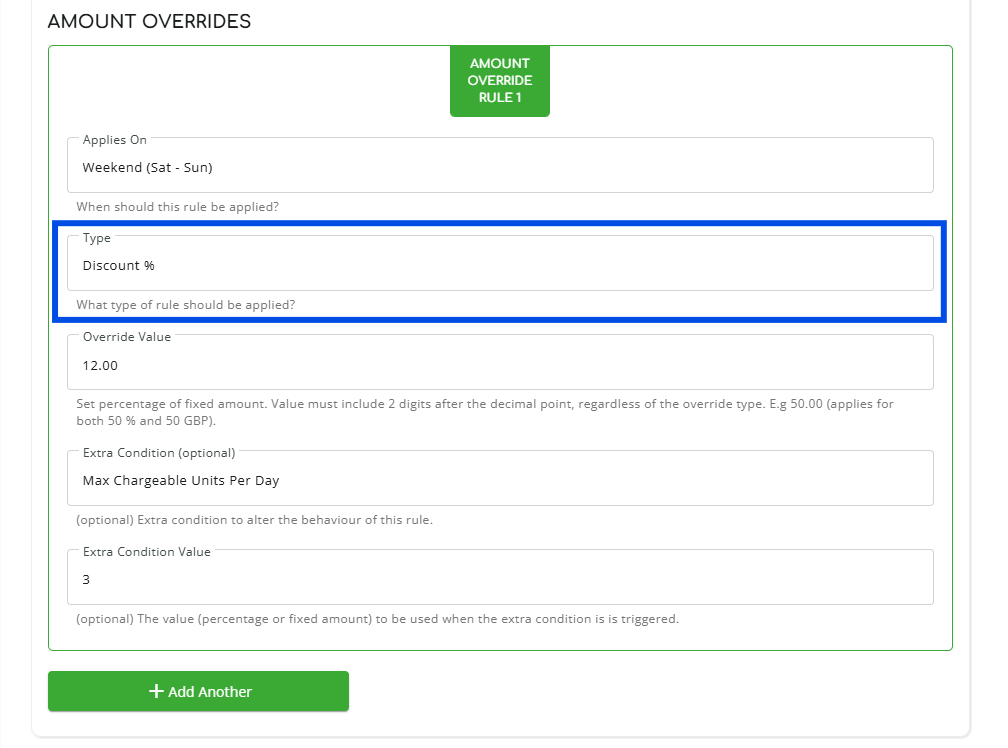
- Click on "Type" to select the rule to apply.
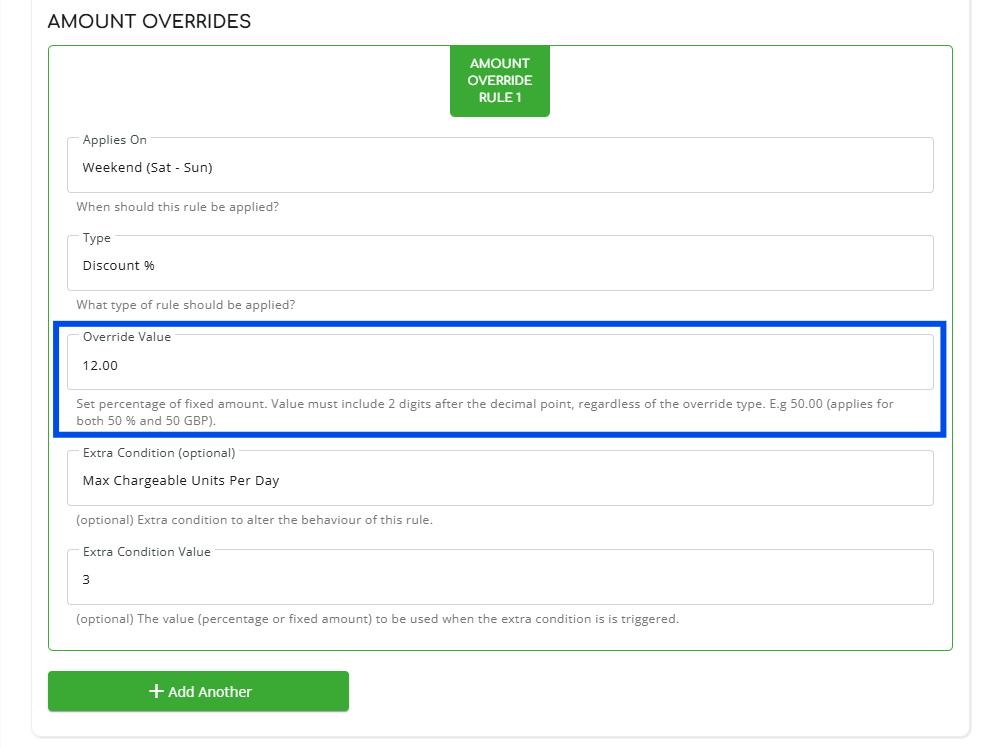
- Click on "Override Value" to set the override value. (NOTE: The value must be entered to 2 decimal places.)
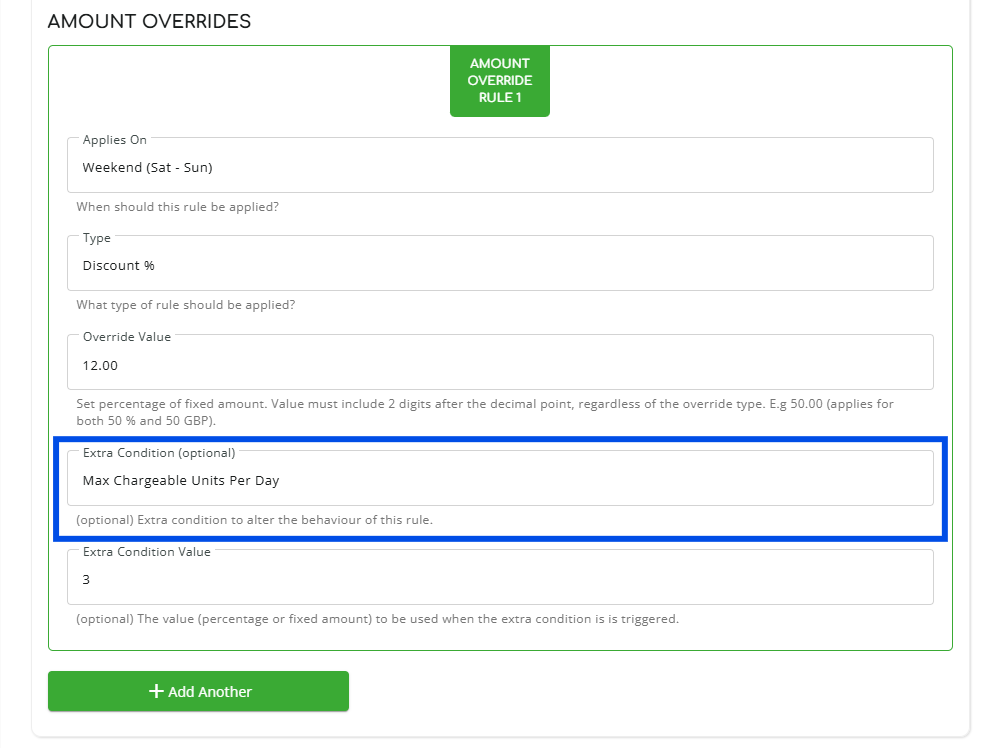
- Click on "Extra Condition (Optional)" to select if any additional conditions should be applied to the override.
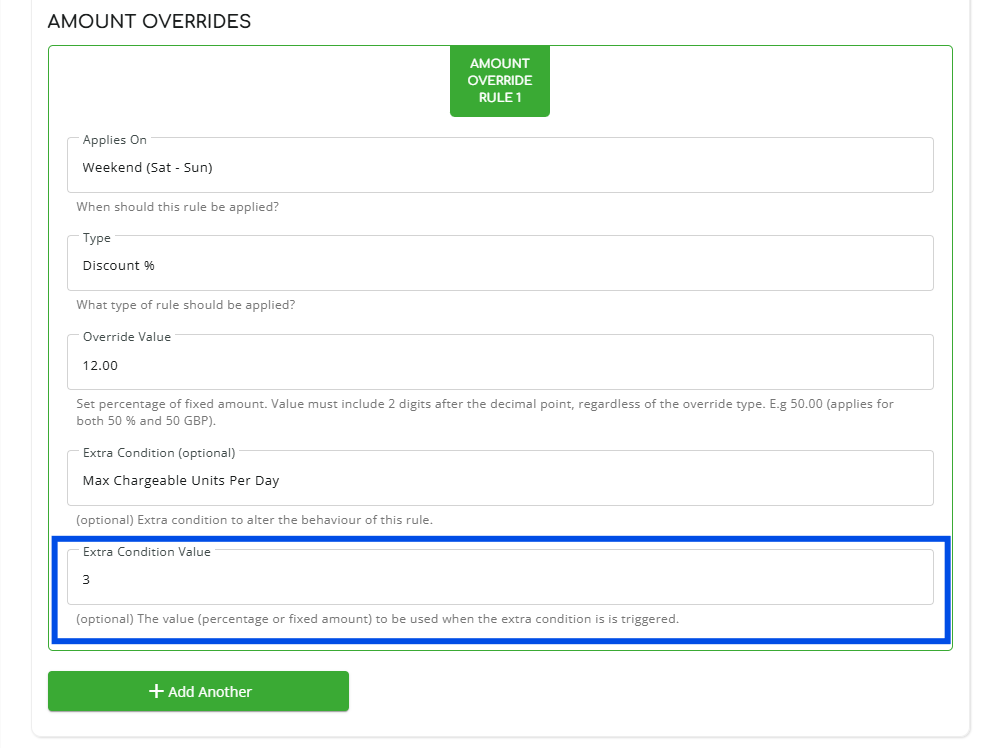
- Click on "Extra Condition Value" to set the value to be used when the extra condition is met.
- Click "+Add Another" to add an additional amount override rule.
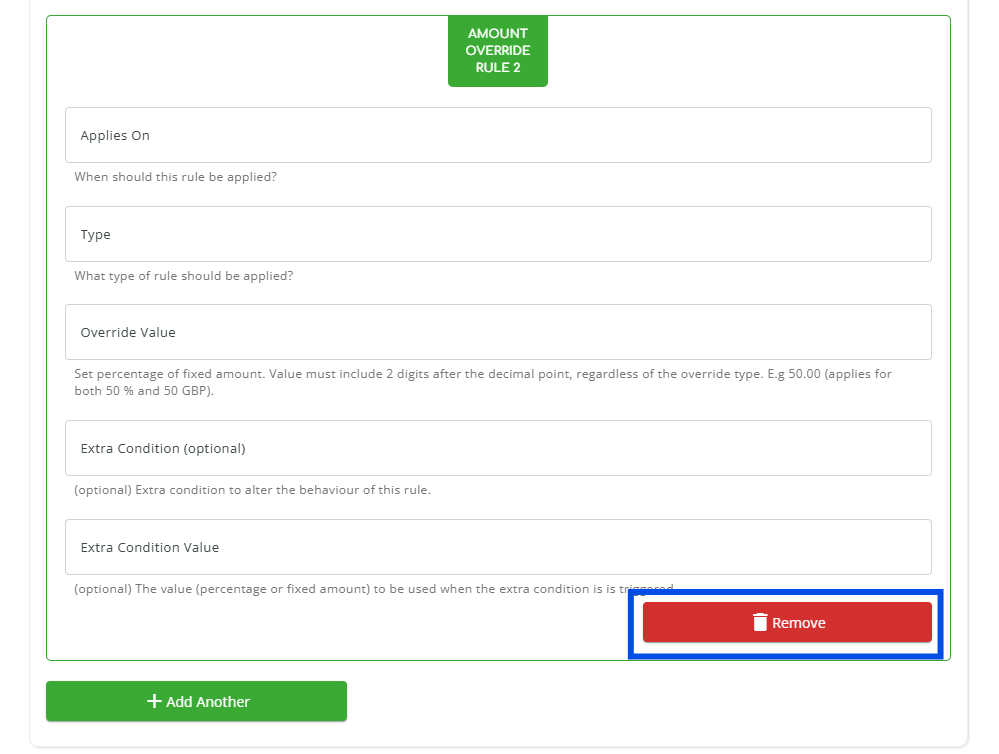
- To remove an existing amount override rule, click on "Remove."
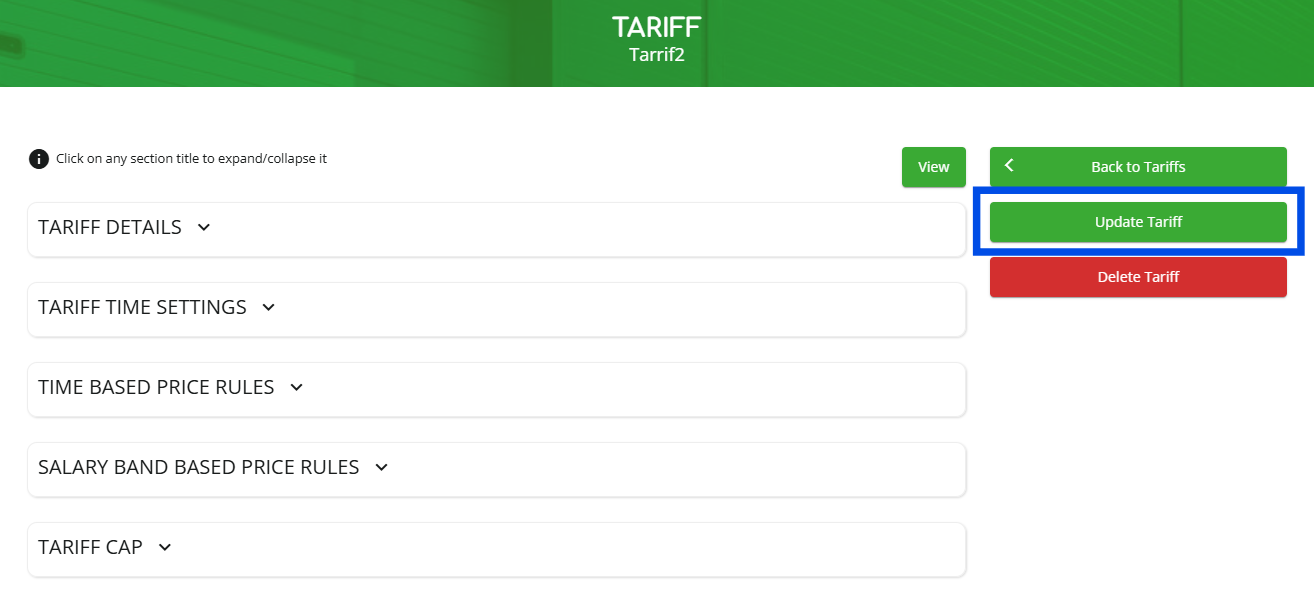
- After updating any of the desired fields, click on “Update Tariff” to save the changes.
Configuring "SALARY BAND-BASED PRICE RULES":
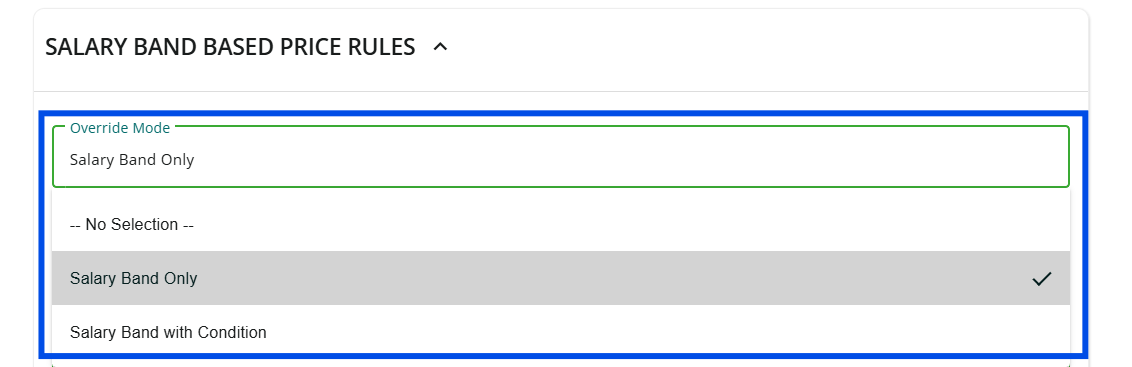
- Under "SALARY BAND BASED PRICE RULES" Click on "Override Mode" to select the mode.
- Click "Applies On" to set when the salary band override rule applies.
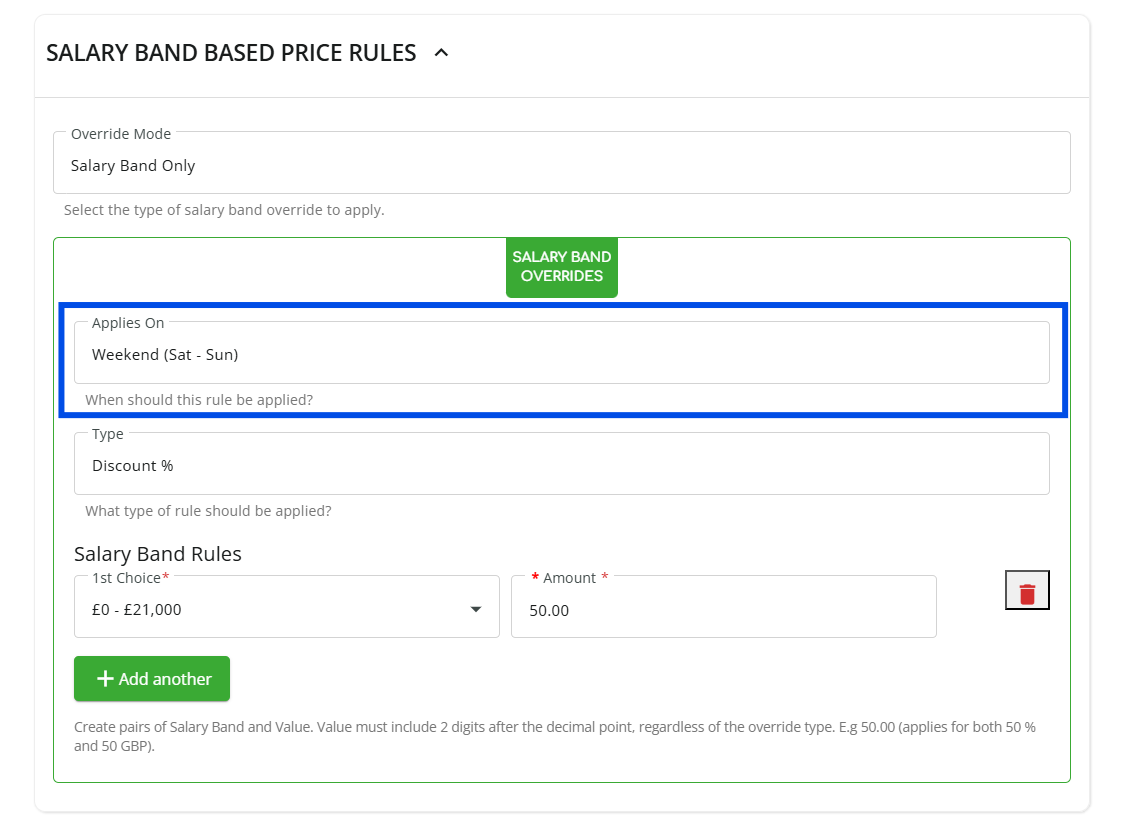
- Click "Type" to choose the rule.
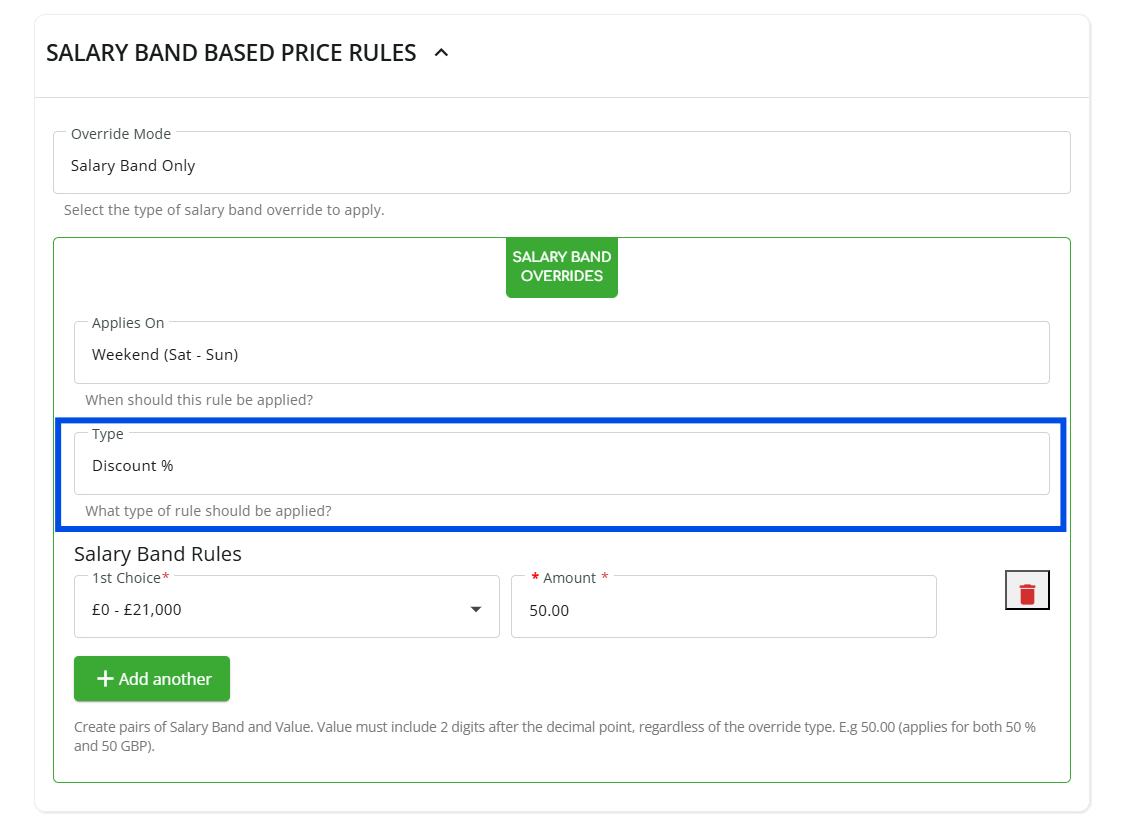
- Click on "1st Choice" under "Salary Band Rules" to select the first salary range.
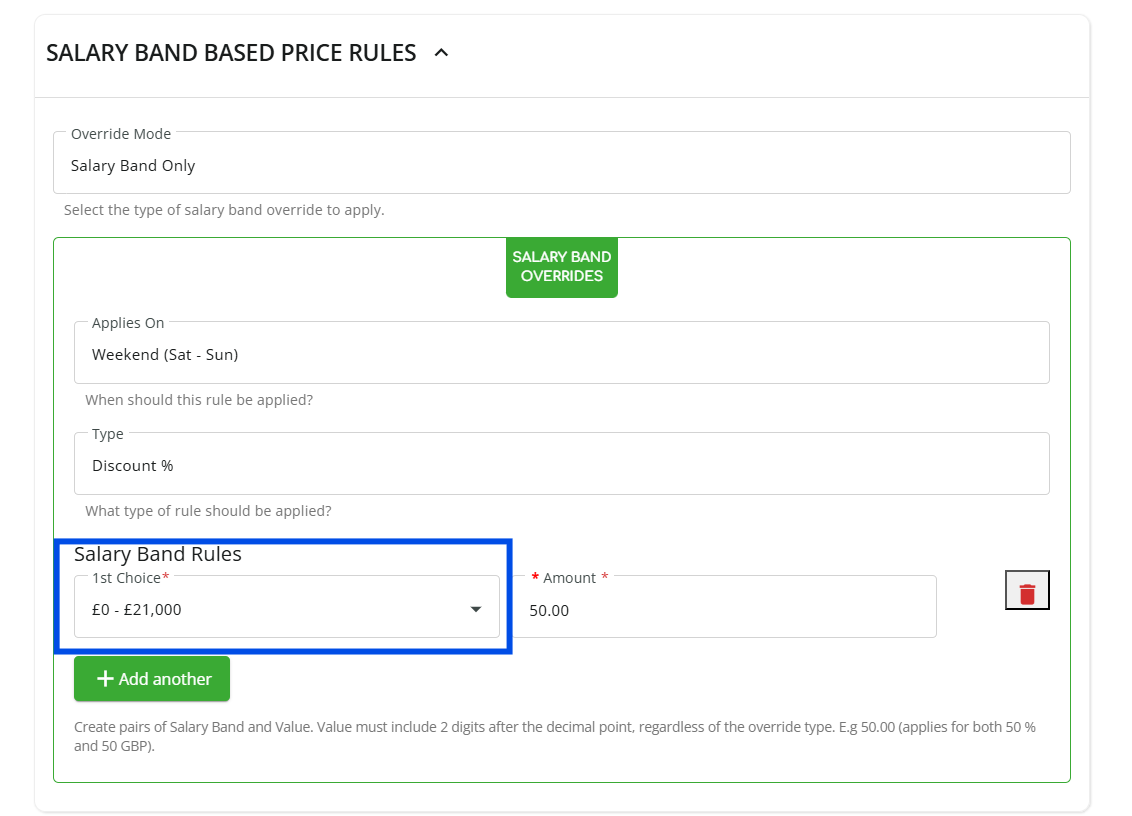
- Click "Amount" under "Salary Band Rules" to enter the override value. (Note: The value must be entered to two decimal places.)
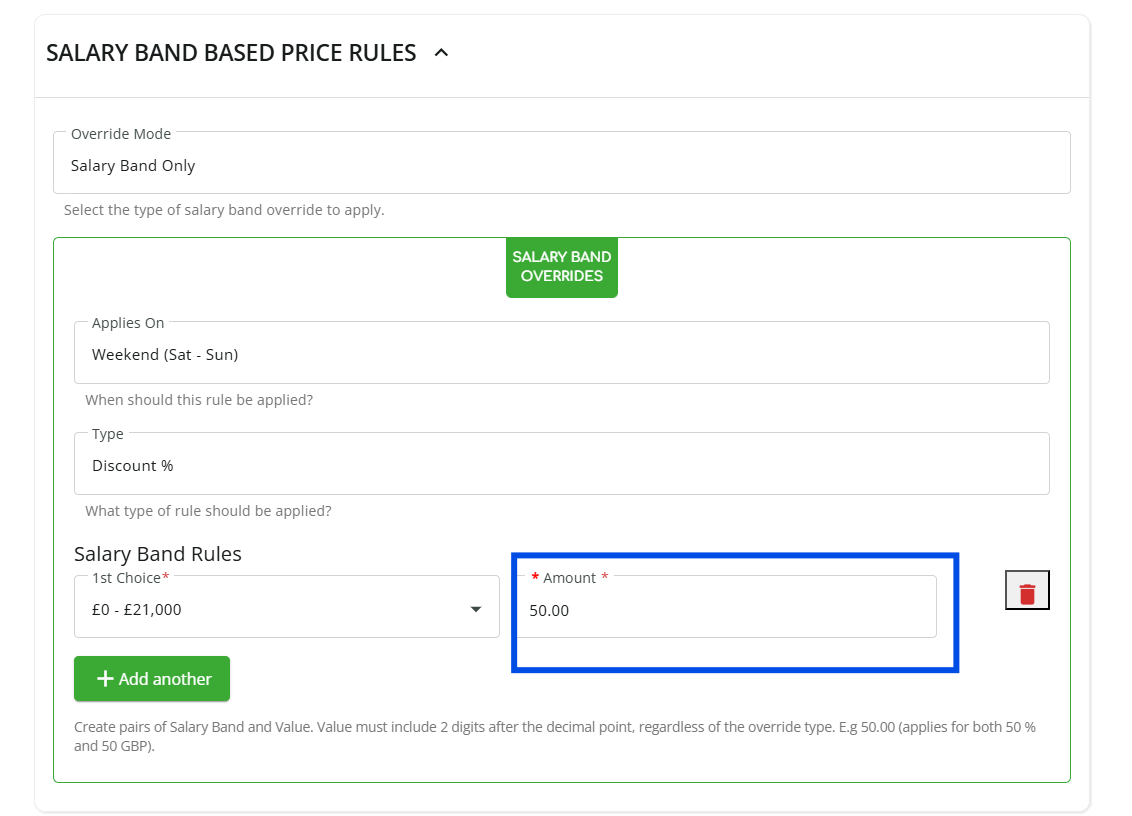
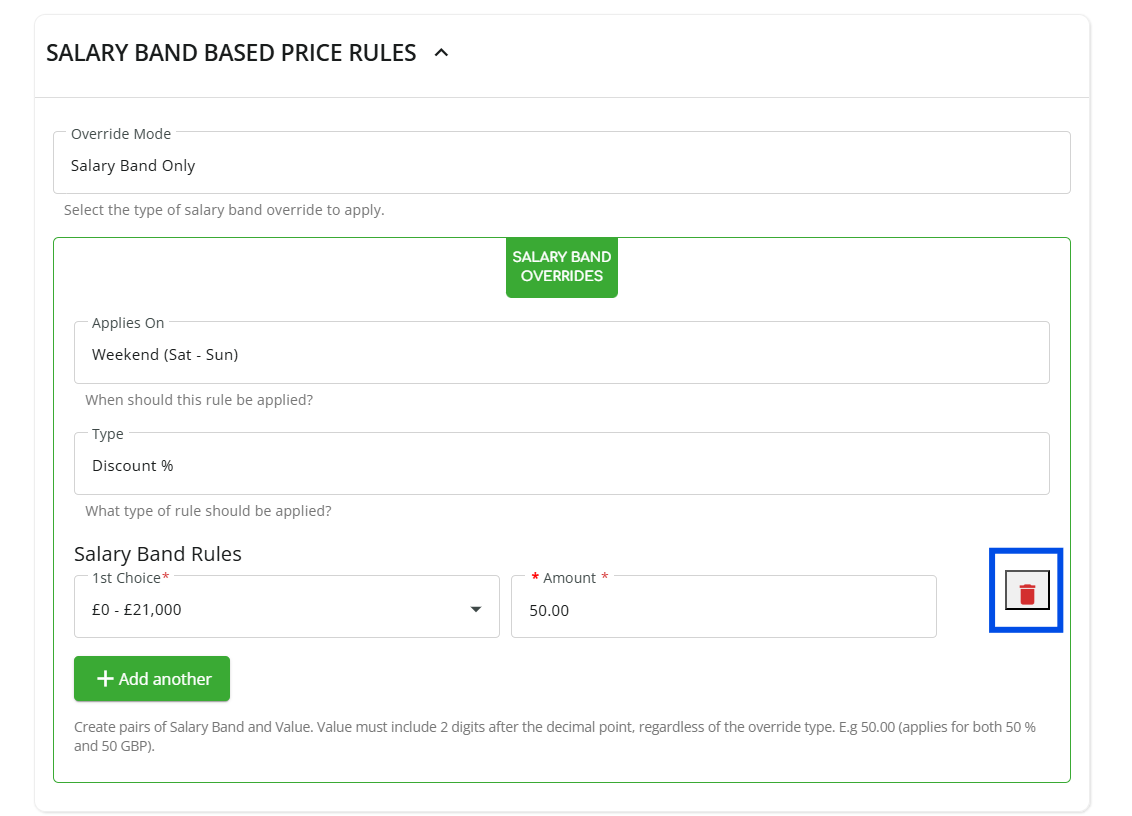
- To remove any existing salary band entries you can click on the "bin icon" in the "Salary Band Rules" section.
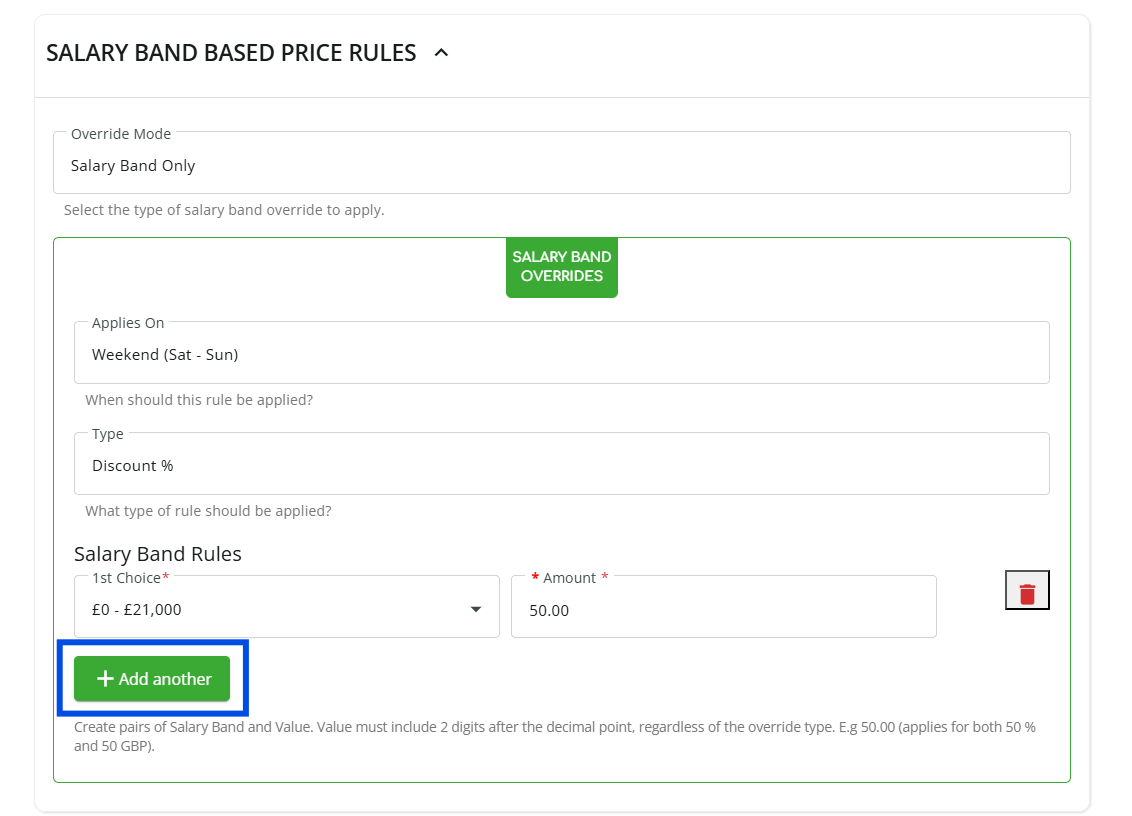
- Click "+Add another" to add a new salary band and then repeat steps 4 and 5.
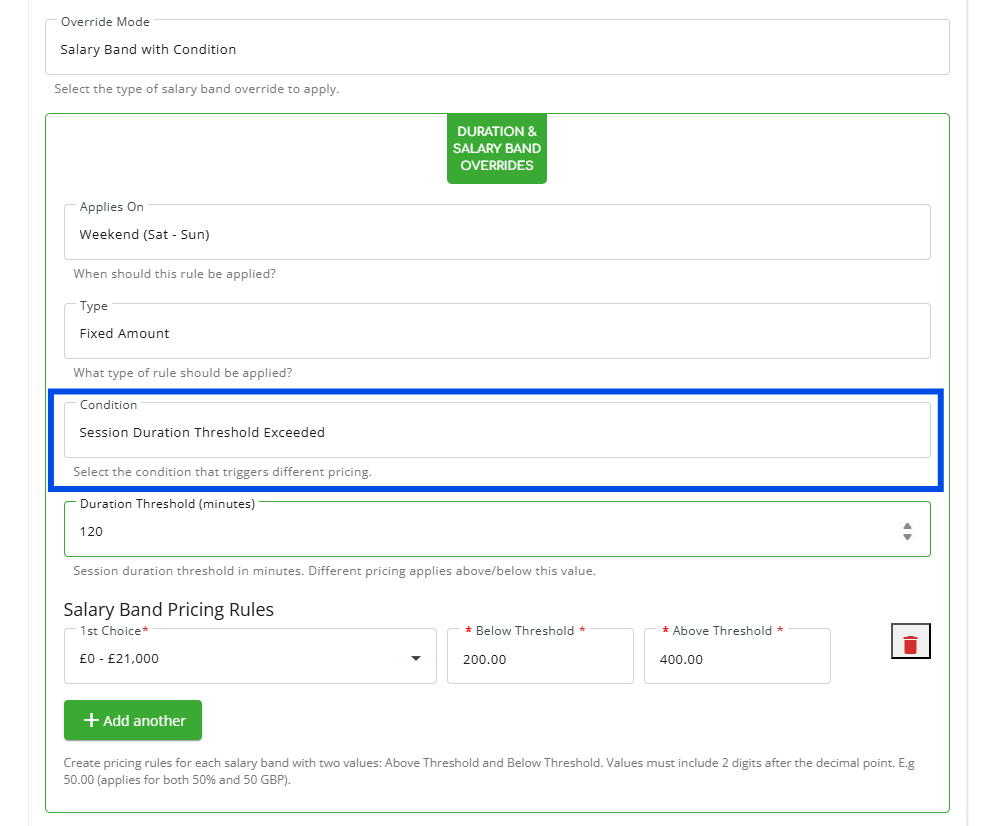
- If you chose the "Salary Band with Condition" override mode then click on "Condition" to set the condition that triggers different pricing. If not then skip to step 14.
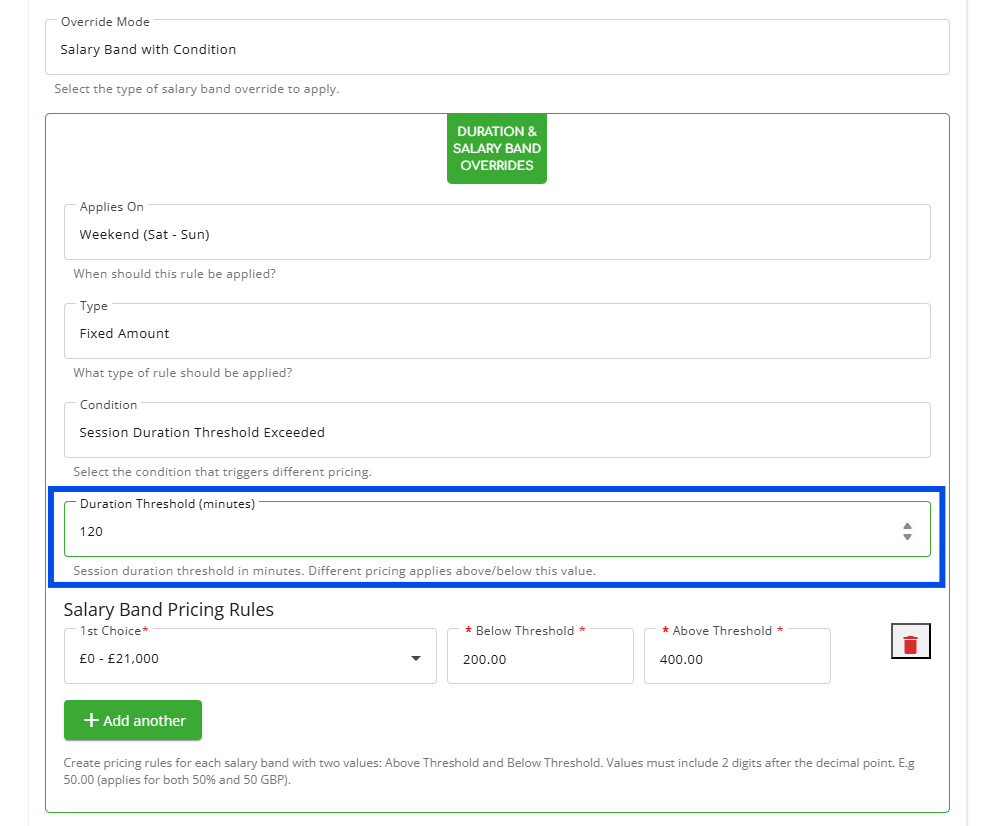
- Click "Duration Threshold (minutes)" to set the duration.
- Under "Salary Band Pricing Rules," click "1st Choice" to set the salary range.
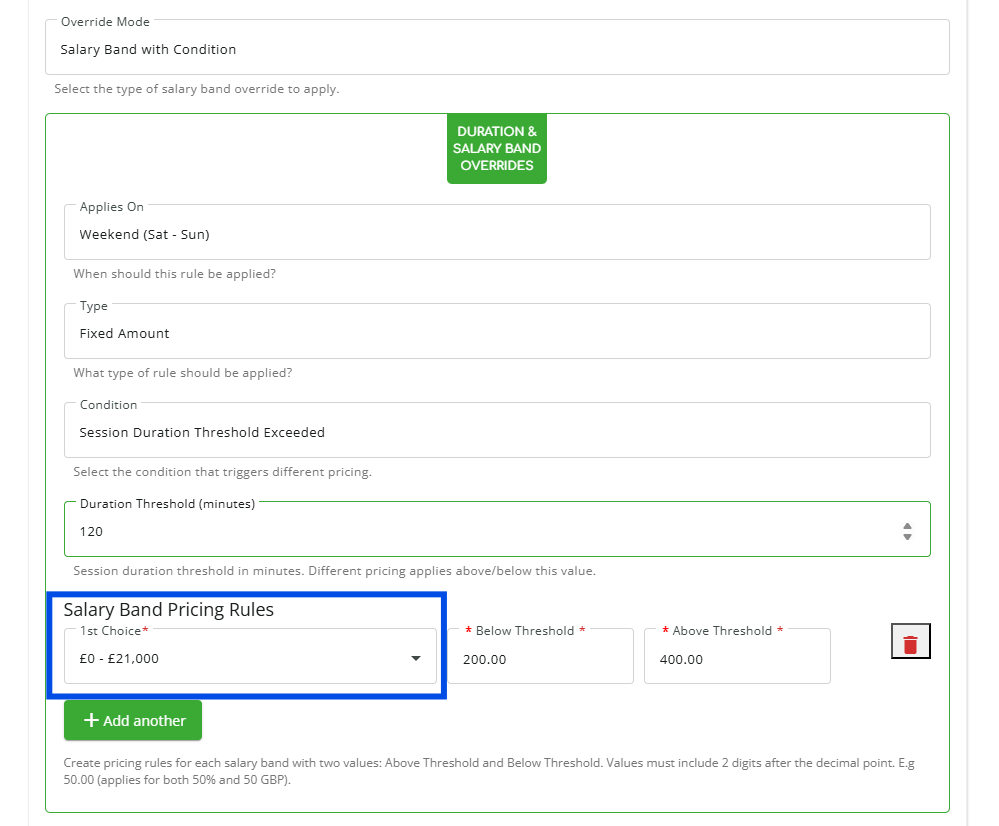
- Click "Below Threshold" to set the value if the threshold has not been reached.
(Note: Enter the value to two decimal places.)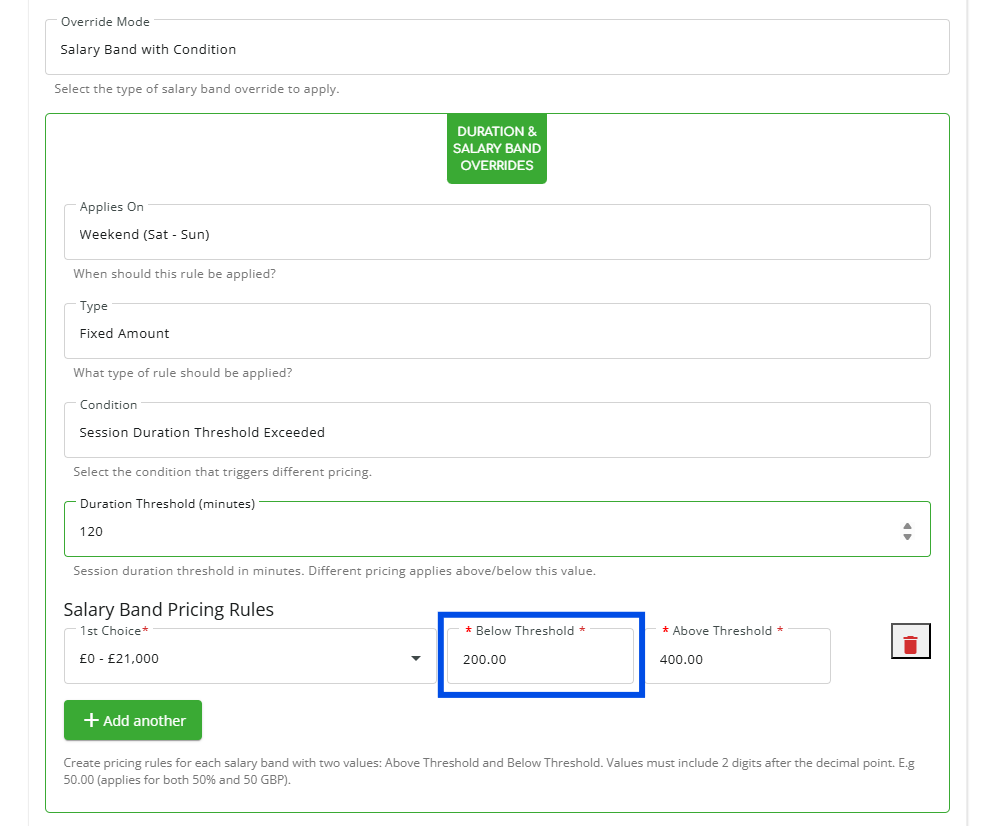
- Click "Above Threshold" to set the value when the threshold is exceeded.
(Note: Enter the value to two decimal places.)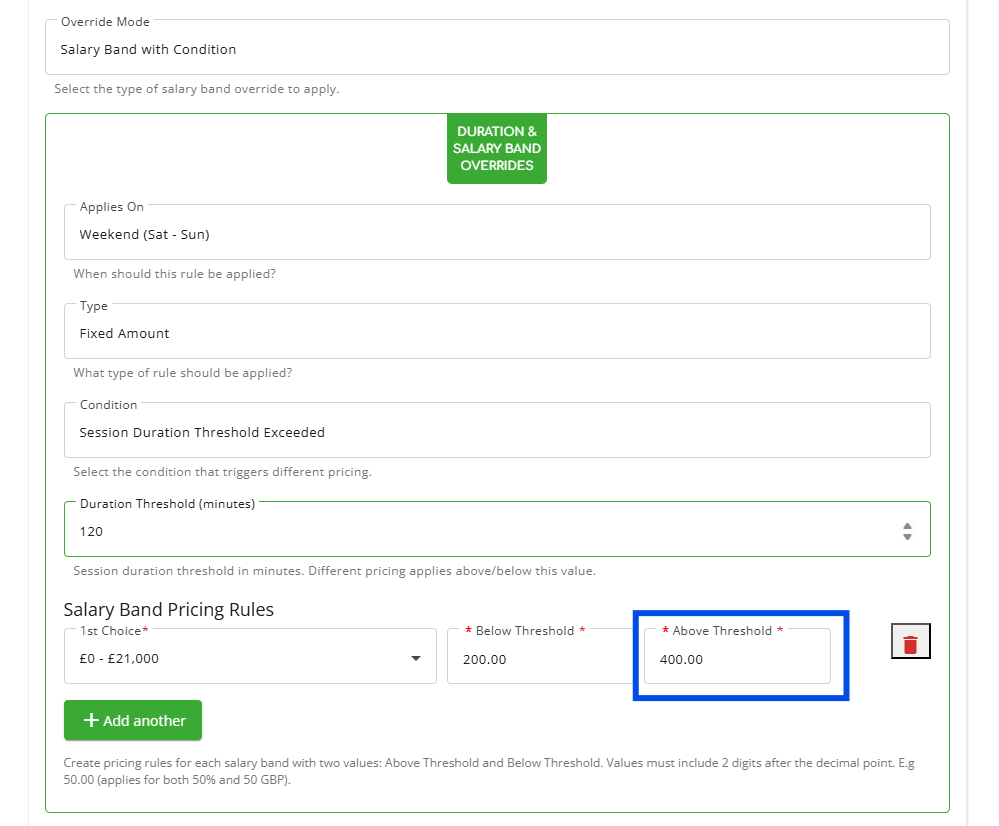
- Click "+Add another" to add a new salary band and then repeat steps 10, 11 and 12.
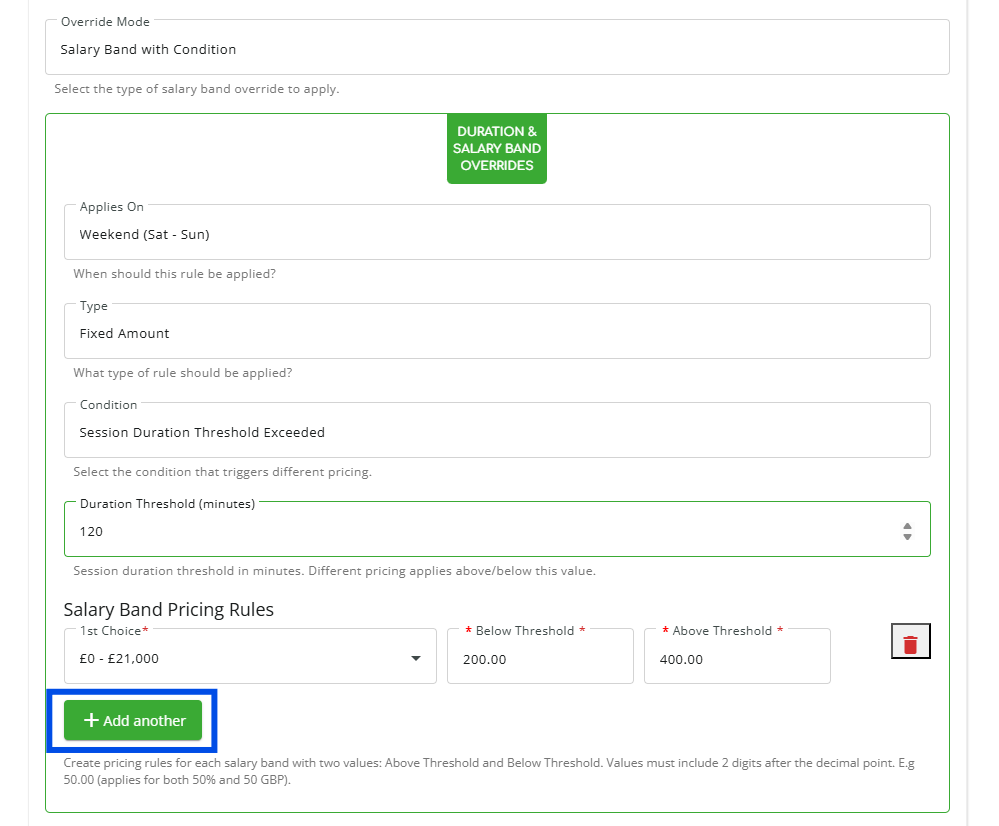
- After updating any of the desired fields, click on “Update Tariff” to save the changes.
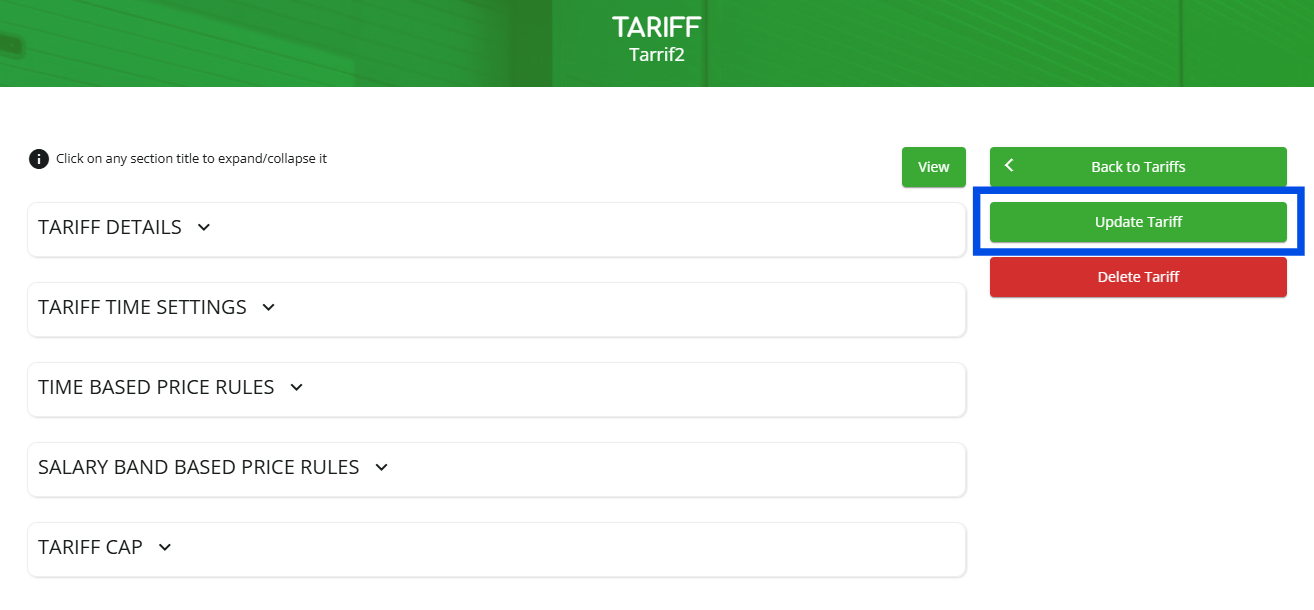
Configuring a "TARIFF CAP":
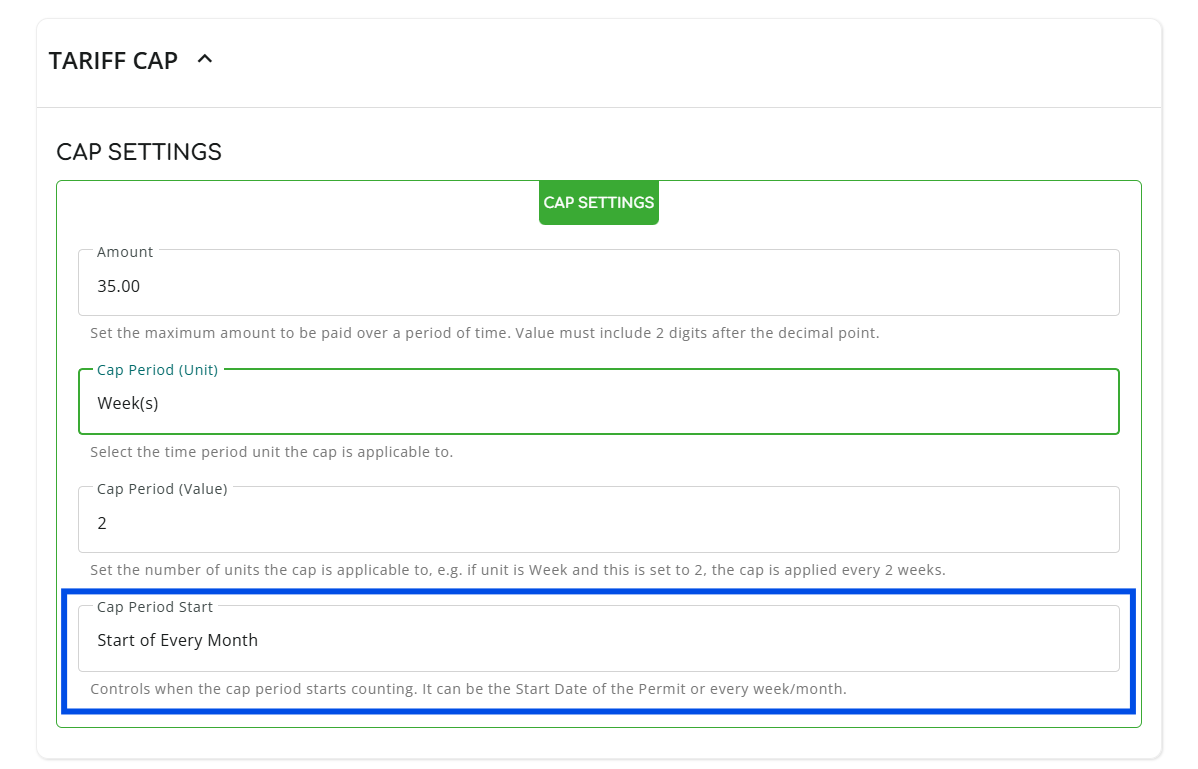
- Under "TARIFF CAP" Click on "Amount" under "CAP SETTINGS" to set the maximum amount payable over a given time.
(Note: Enter the value to two decimal places.)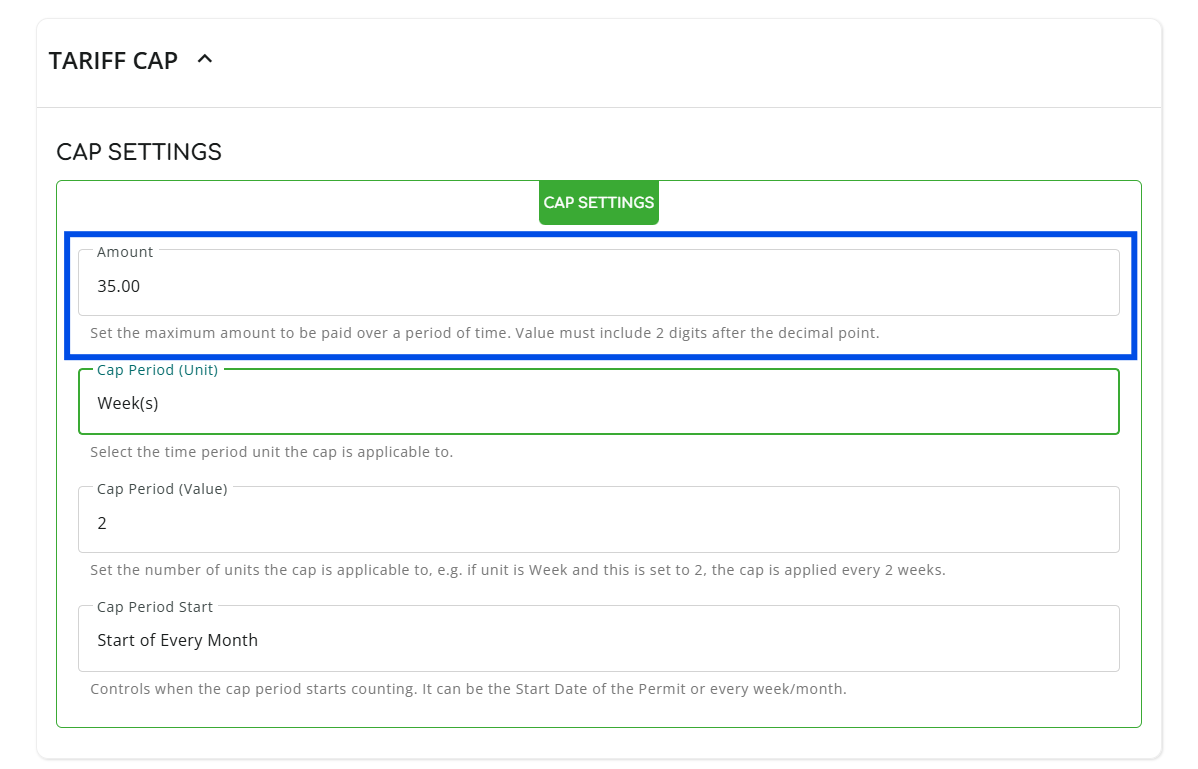
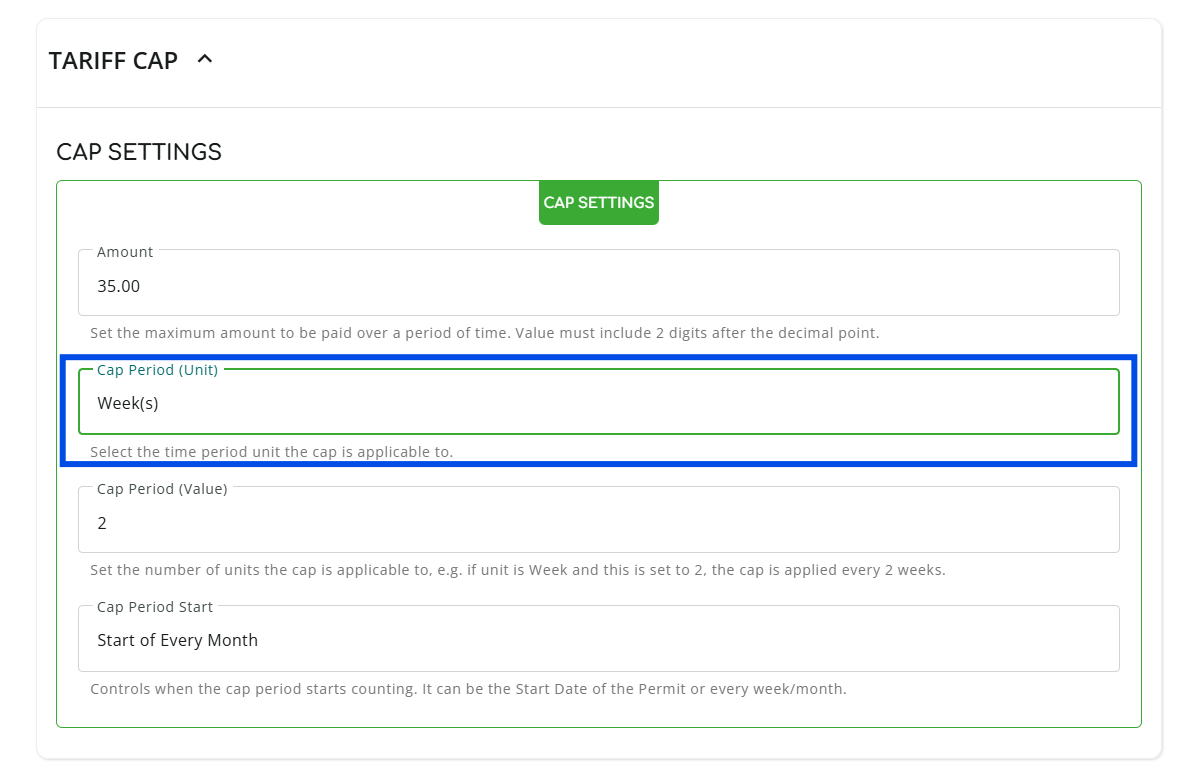
- Click on "Cap Period (Unit)" to choose the time period that the cap period is applicable to.
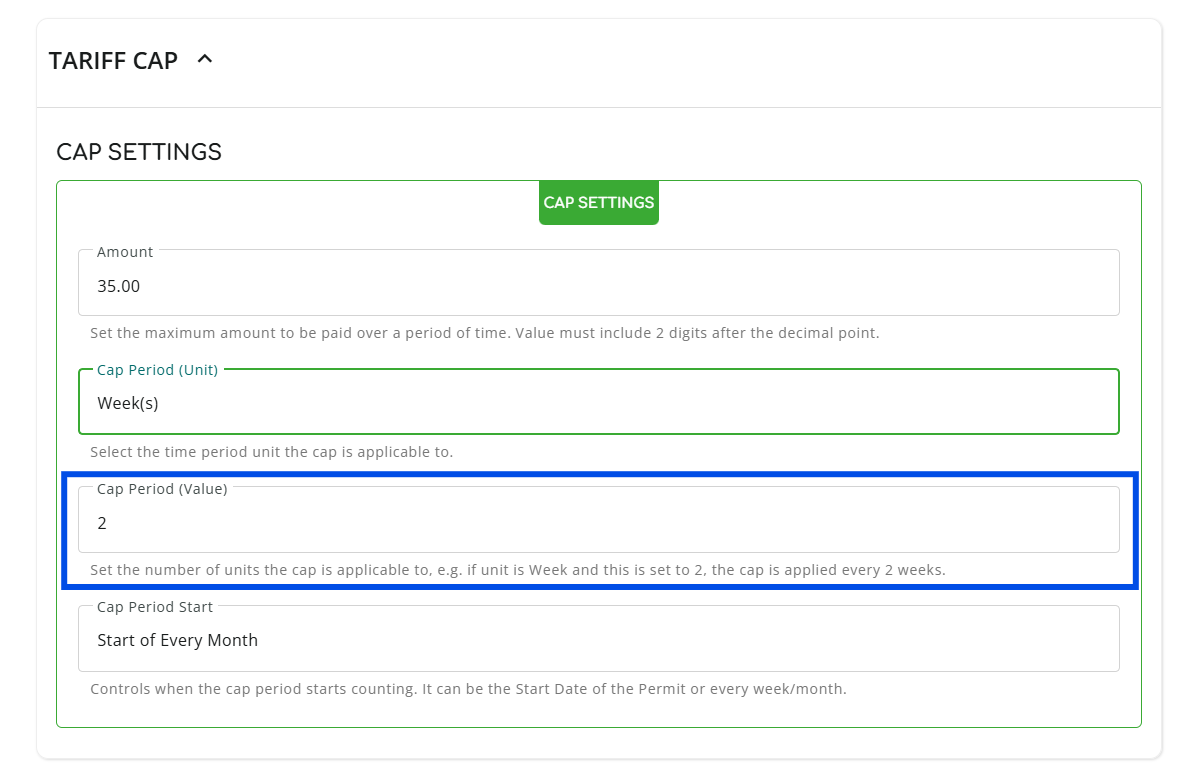
- Click "Cap Period (Value)" to set the number of units for the cap. For example, the below screenshot indicates that a maximum of £35.00 is chargeable across two weeks.
- Click "Cap Period Start" to choose the start of the cap period.
- After updating any of the desired fields, click on “Update Tariff” to save the changes.