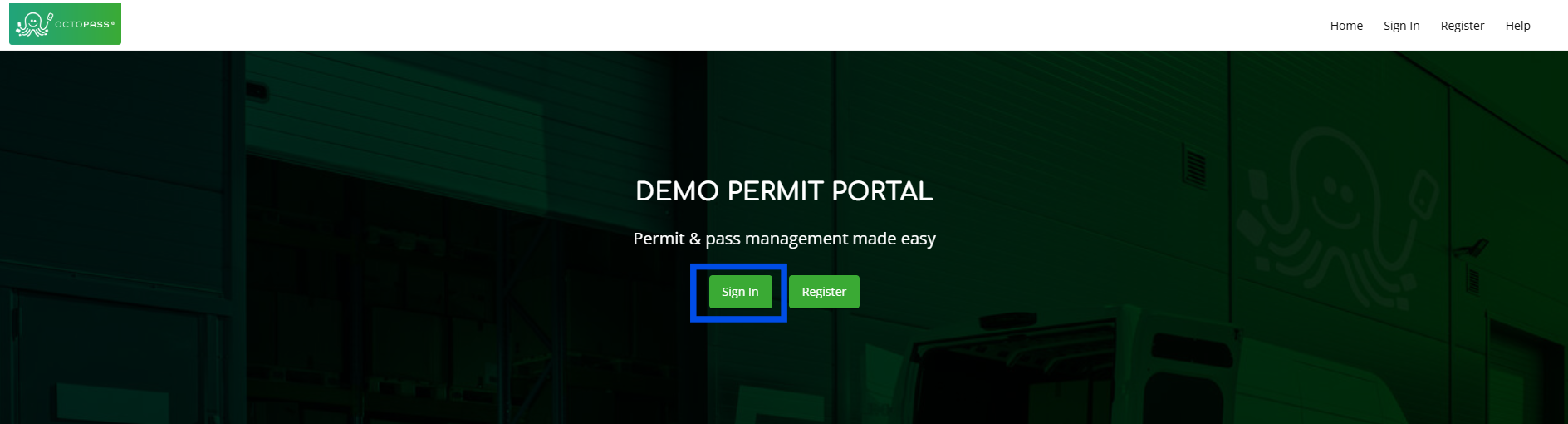
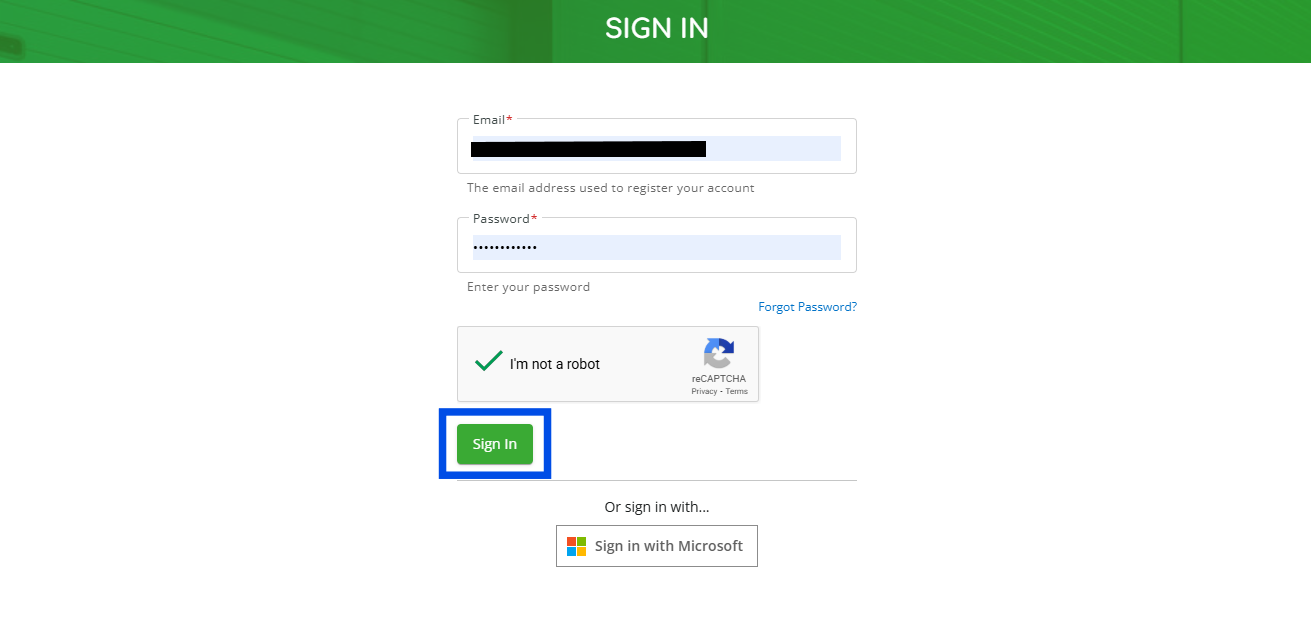
1. Click the “Sign In” button as shown in the image below.
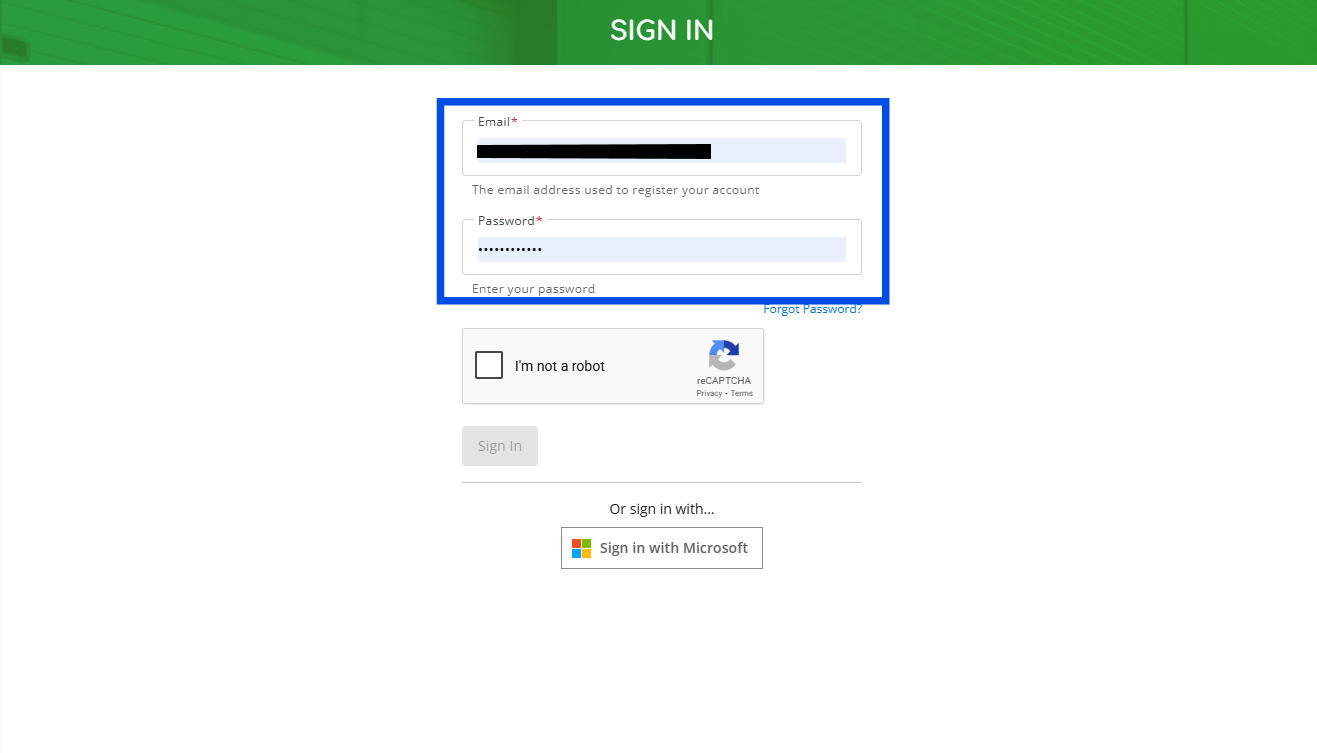
2. Enter your "Email" and "Password" in the fields below.
3. Click the “I’m not a robot” checkbox.
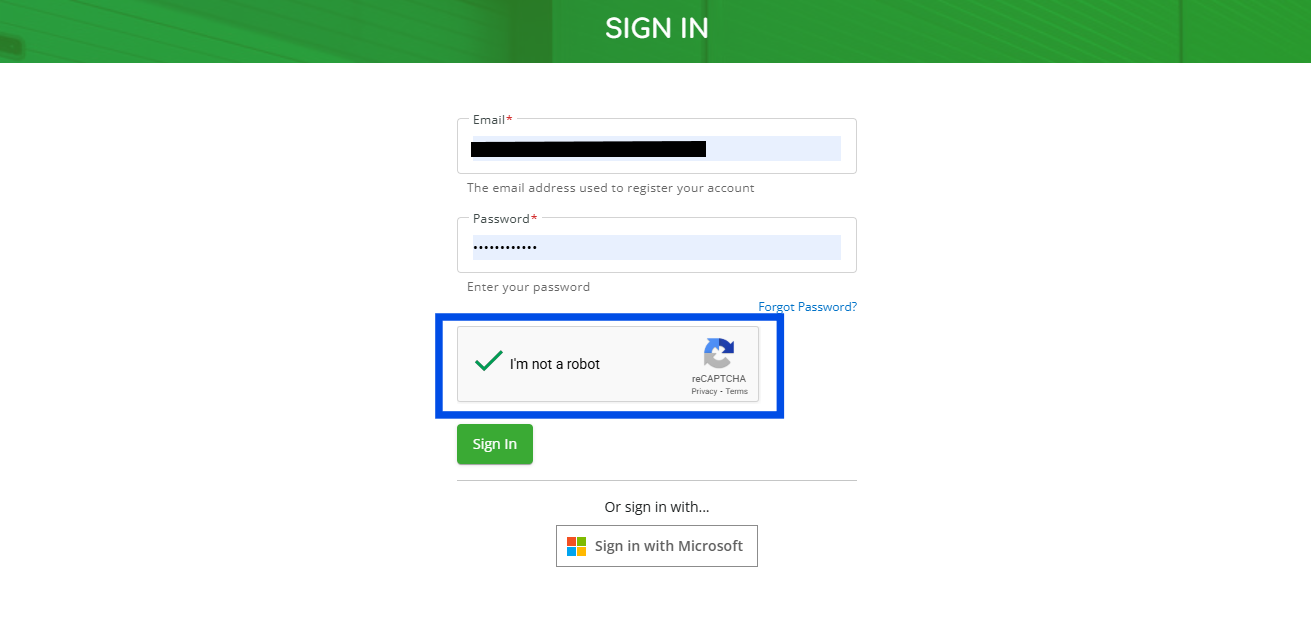
4. Then click the “Sign In” button. (Note: The “Sign In” button will turn green once all fields are completed and the “I’m not a robot” checkbox is selected.)
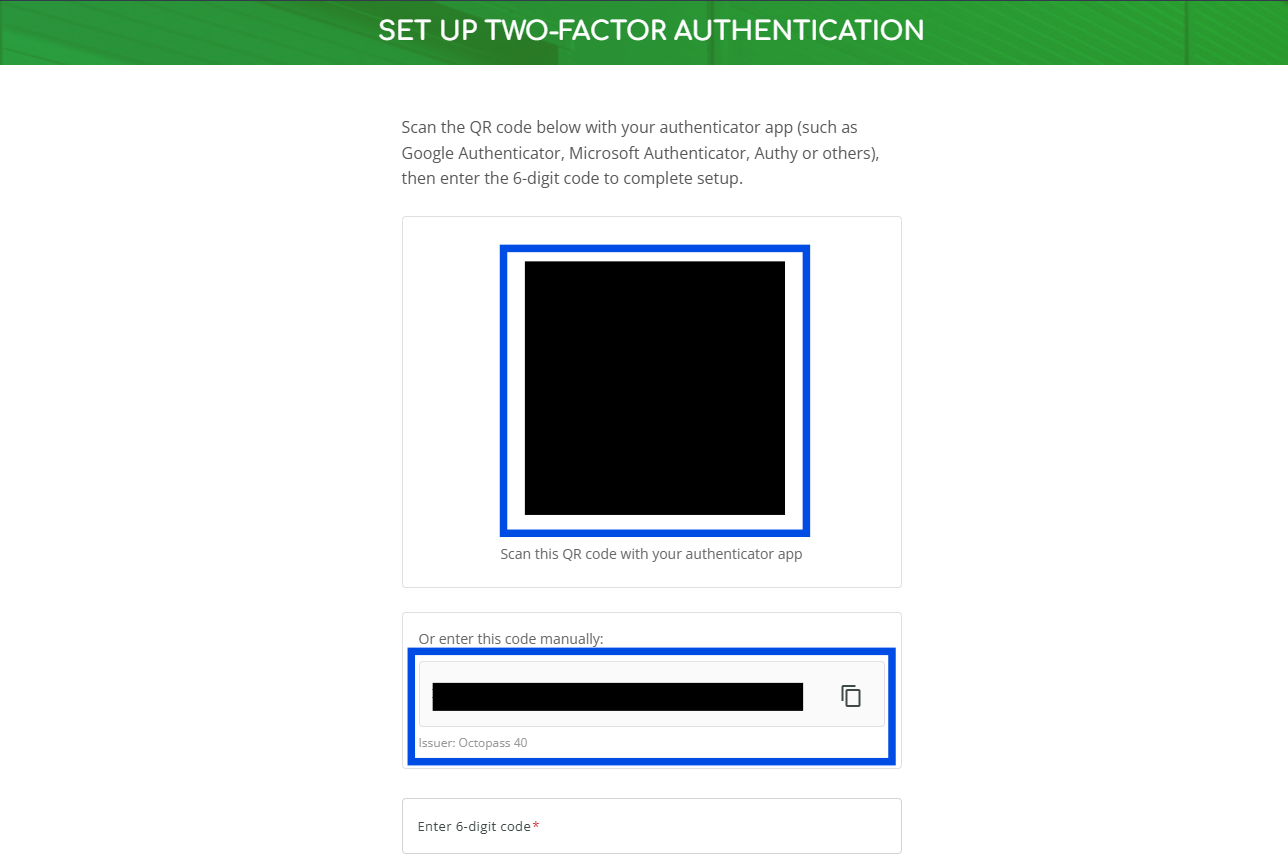
5. For the next step you must have an authenticator app (such as Google Authenticator or Microsoft Authenticator) installed on your phone before continuing. You can then choose one of the following options: (Note: If this is not your first time signing in with MFA, you can skip this step and go to Step 6.)
- Open your authenticator app on your phone and either scan the QR code or enter the code manually provided to you in the authenticator app.
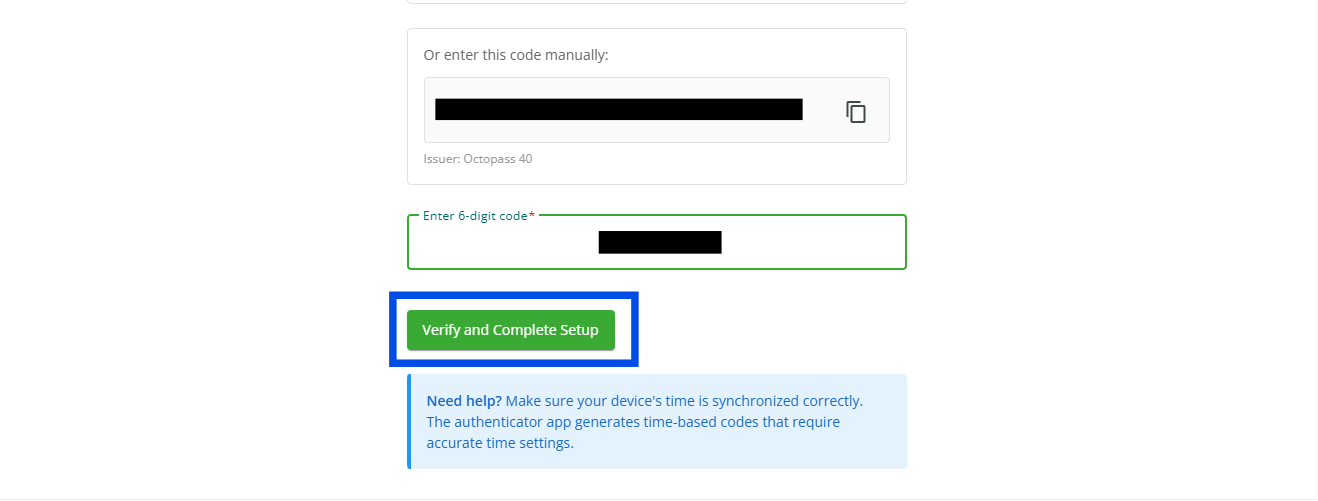
6. After adding the account to your authenticator app, tap it and enter the 6-digit code shown below.
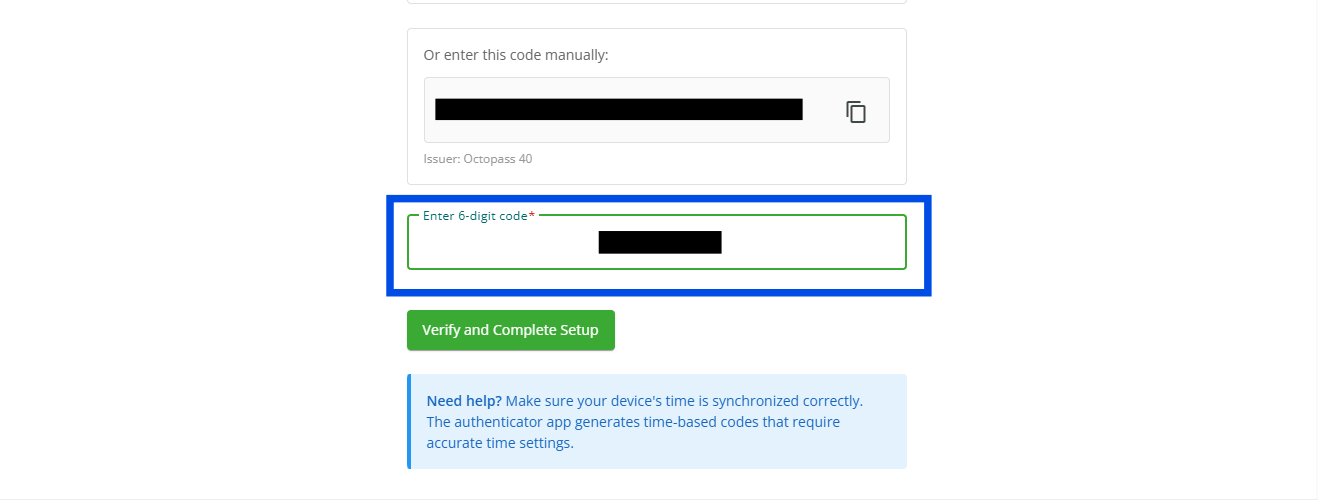
7. Finally, click the "Verify and Complete Setup" button to complete the sign-in process.