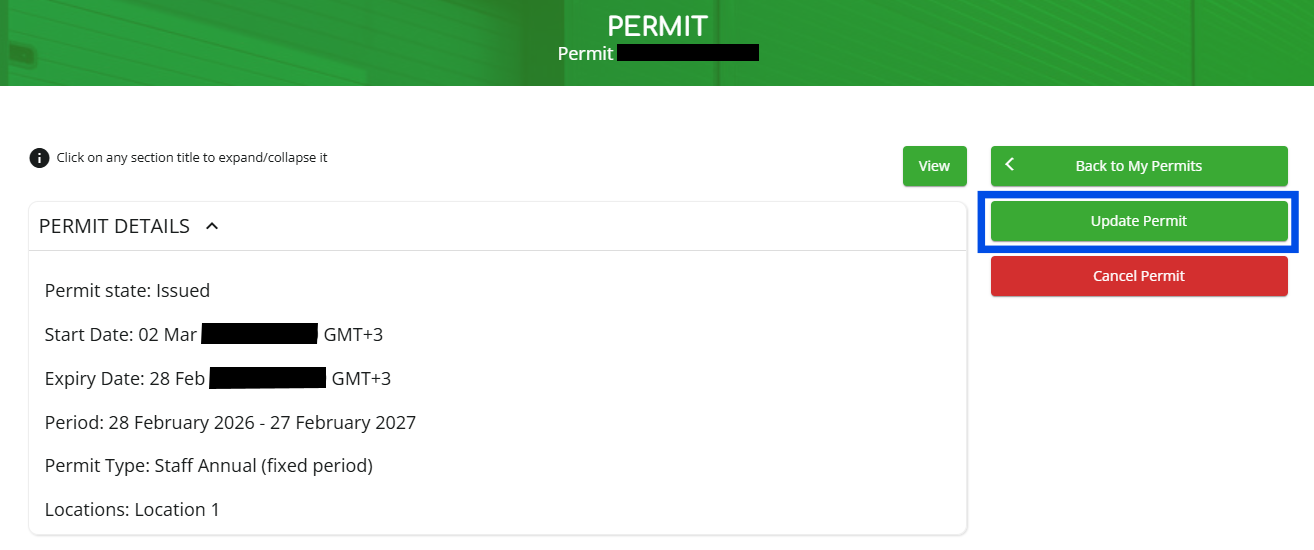
How to add a new vehicle to the 'My Vehicles' list
(Note: This feature is not available on all permit portals. If you do not see it, please skip to Step 7.)
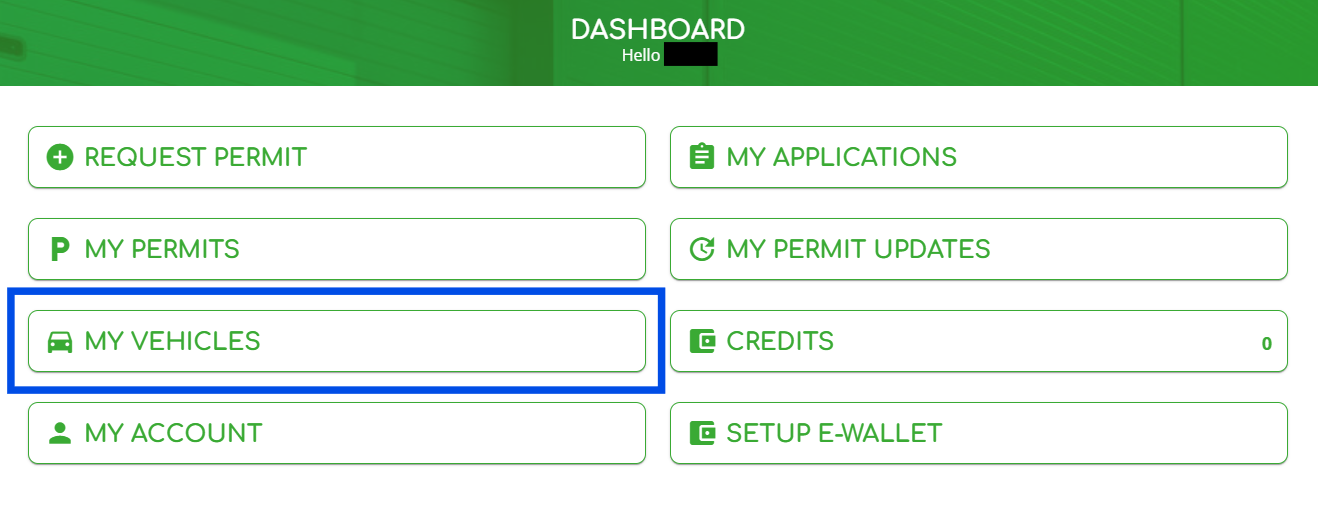
1. Log in to the portal and on the dashboard select “MY VEHICLES.”
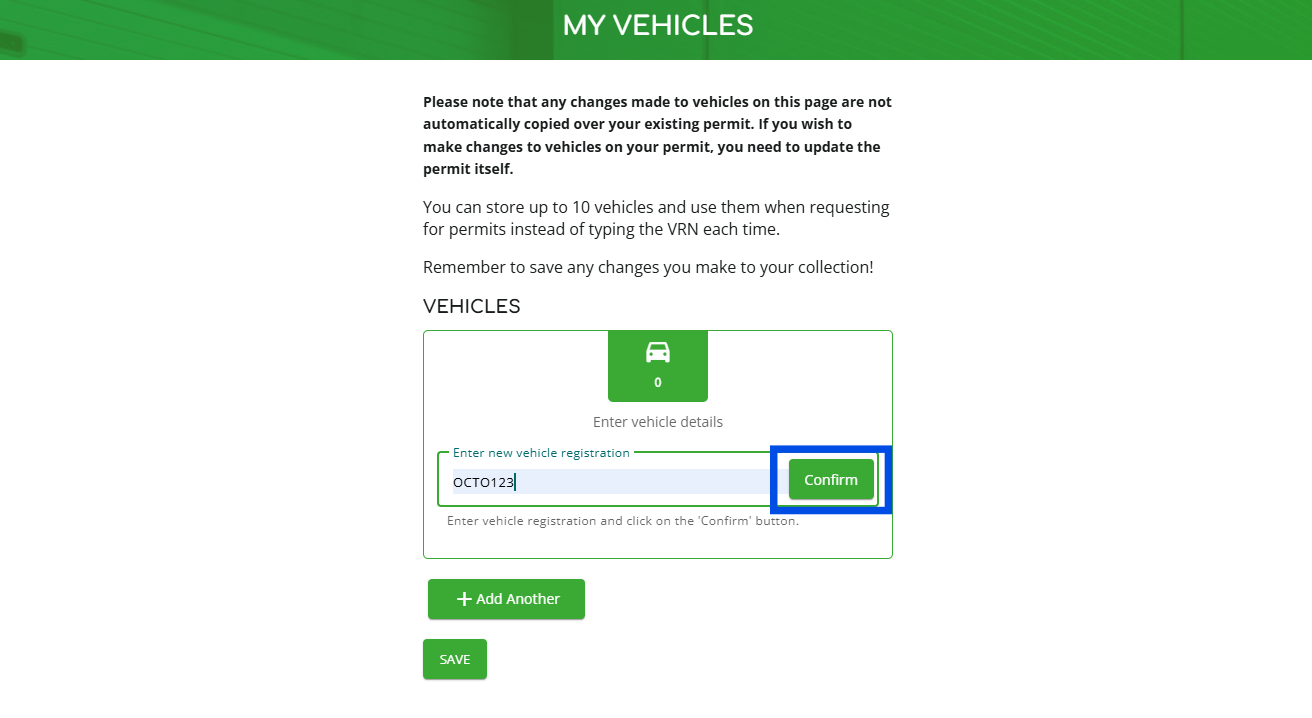
2. Enter the vehicle registration and click “Confirm.”
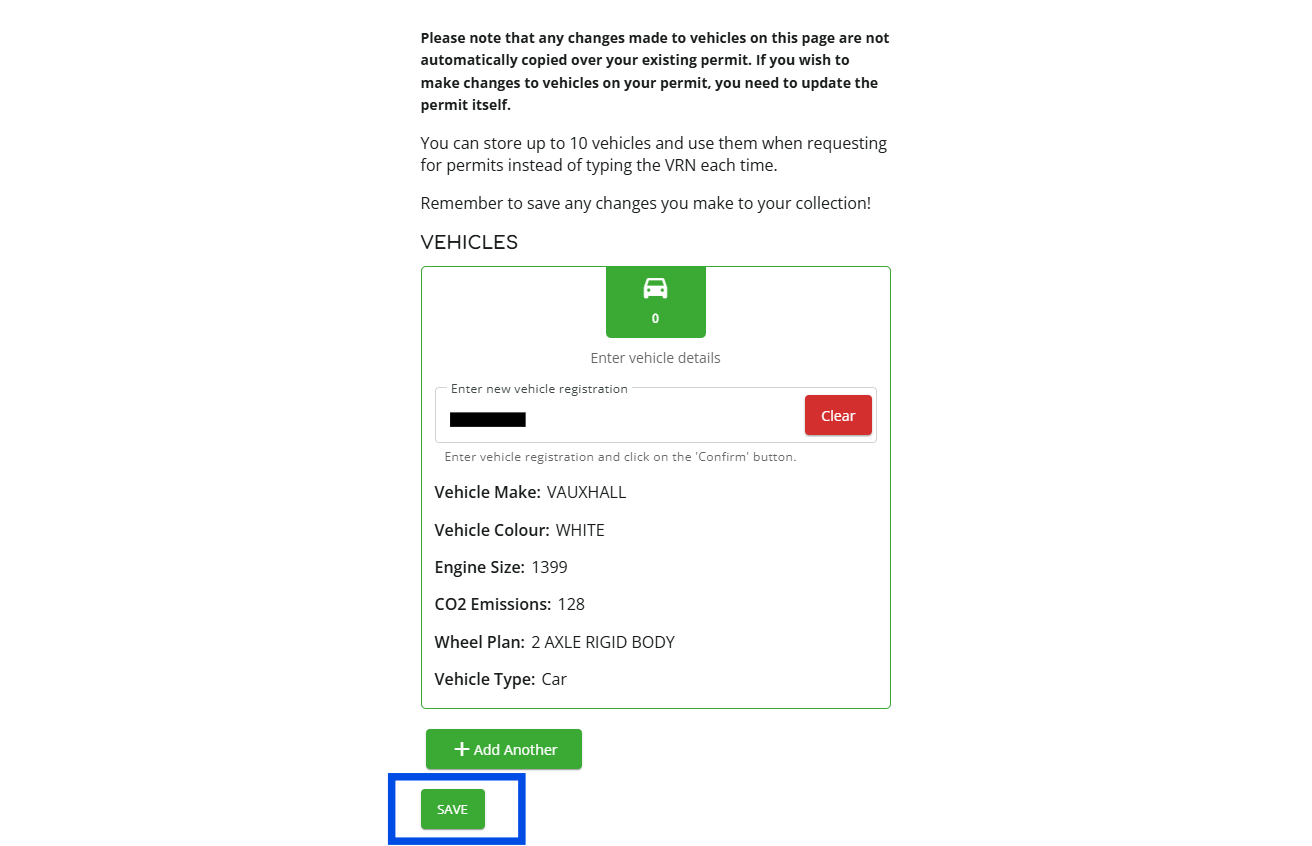
3. Review your vehicle details and click “SAVE” at the bottom of the page.
4. Click on “+Add Another” if you wish to add another vehicle. (NOTE: By default you can store up to 10 vehicles in total, though the limit varies depending on the portal.)
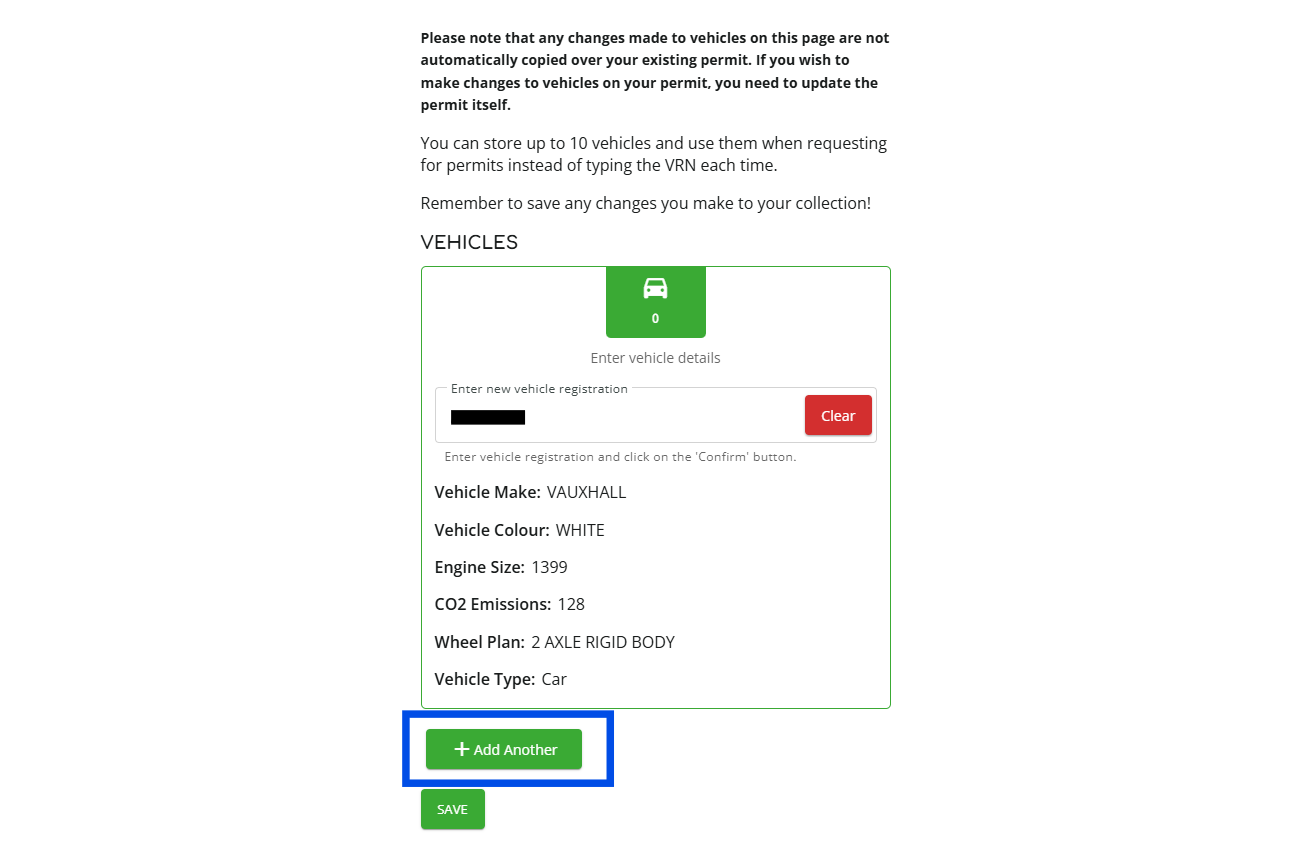
5. If you wish to remove the first vehicle you must click on “Clear” to remove it.
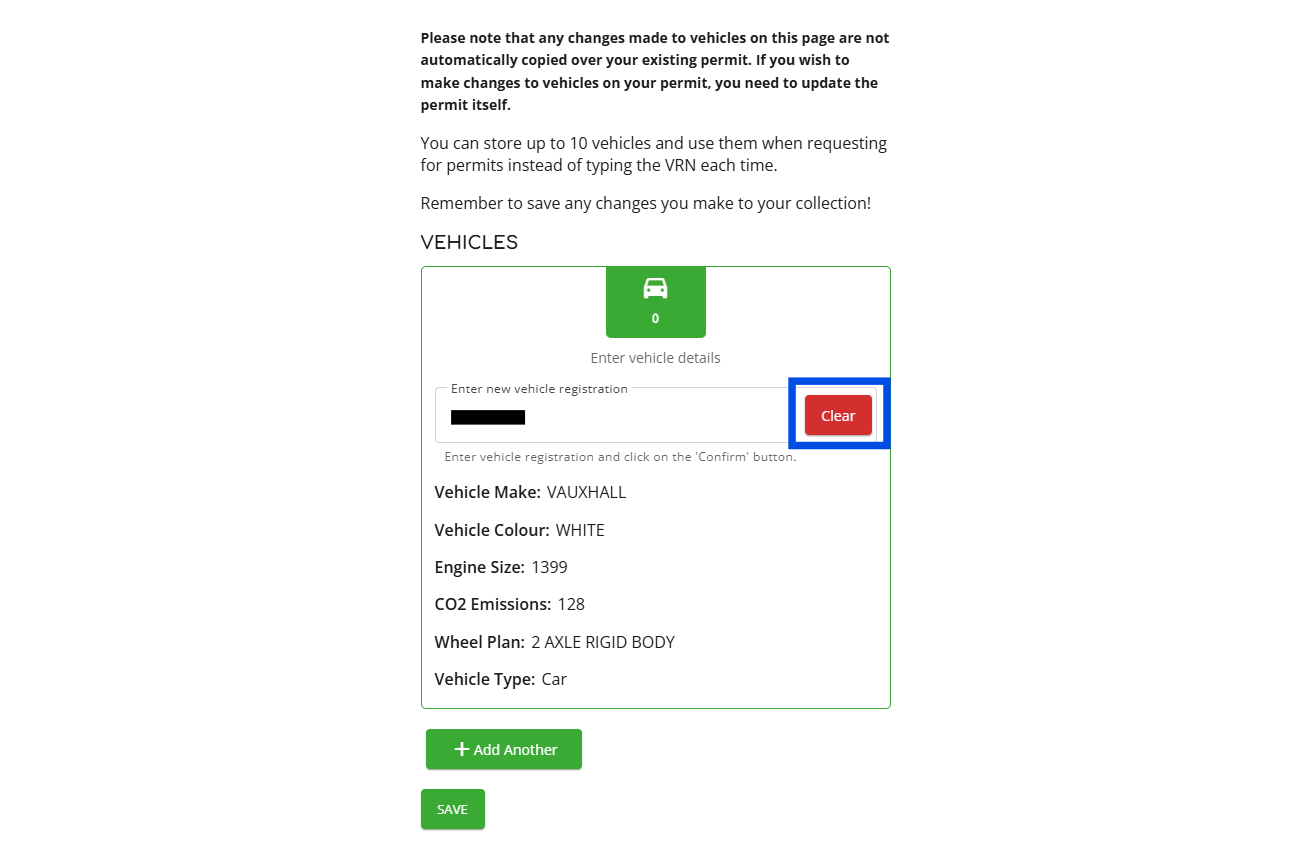
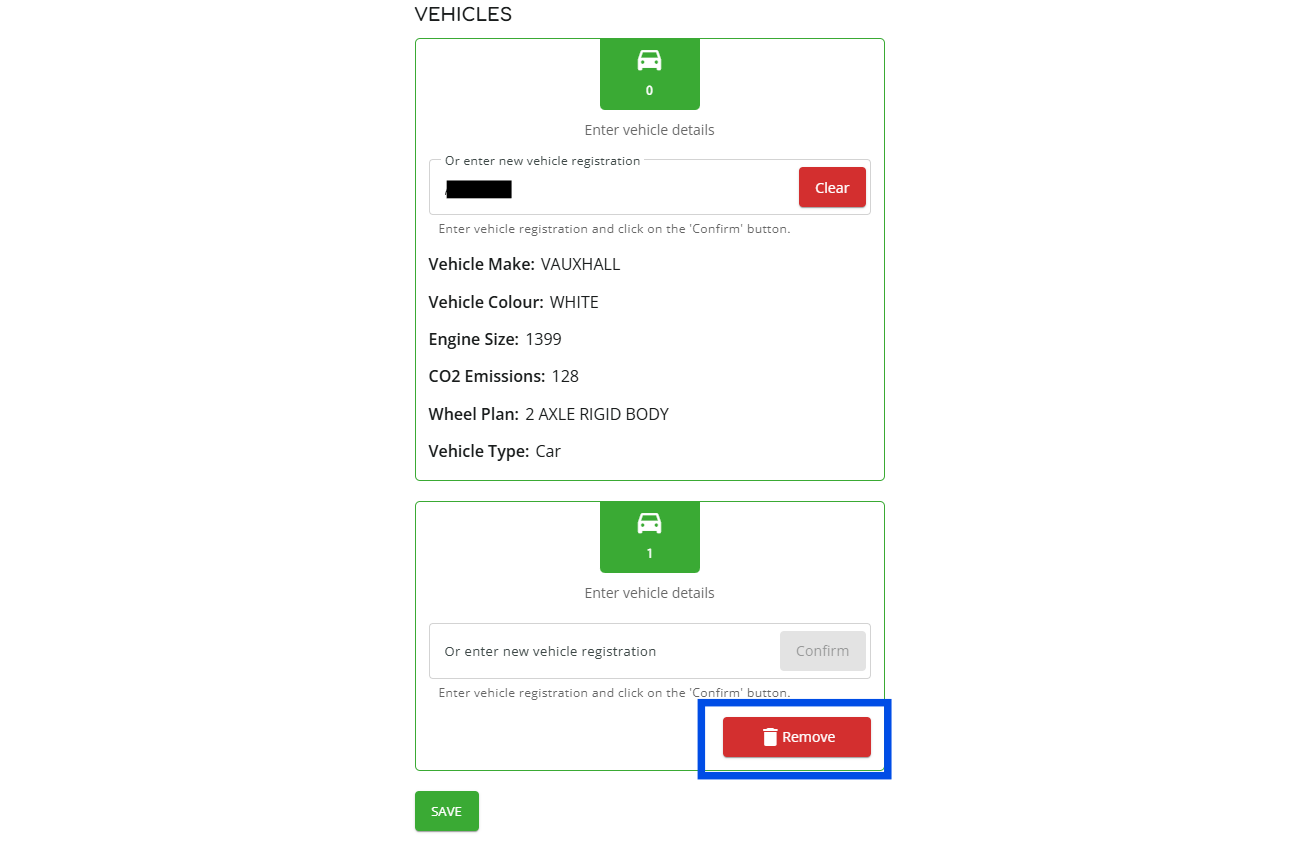
6. To remove an additional vehicle from the list you can click on “Remove” to delete it.
How to add a vehicle to your permit
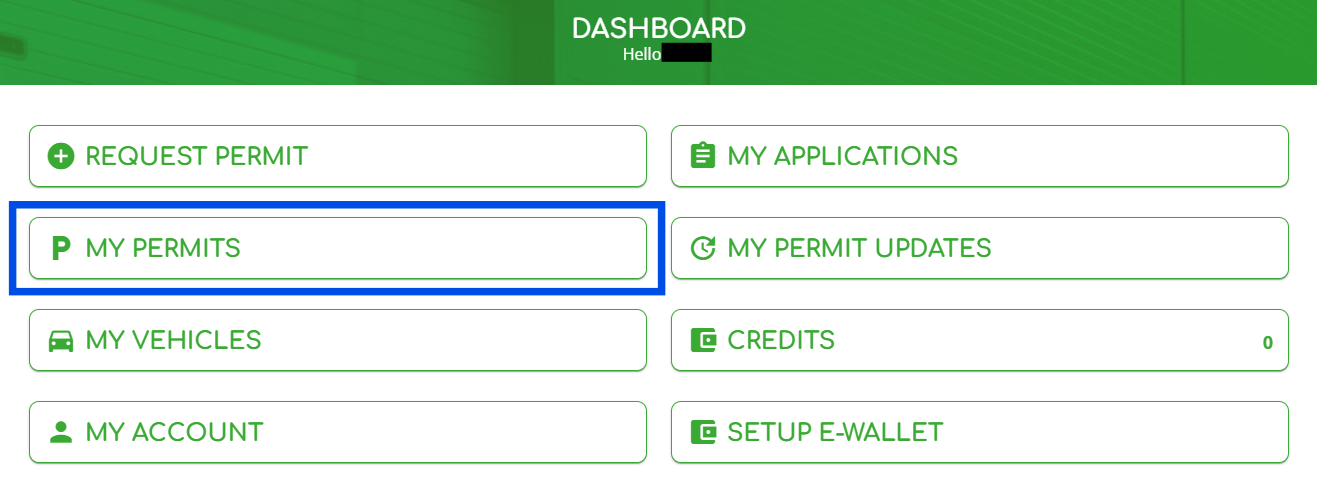
7. Log in to the permit portal and then select the “MY PERMITS” widget.
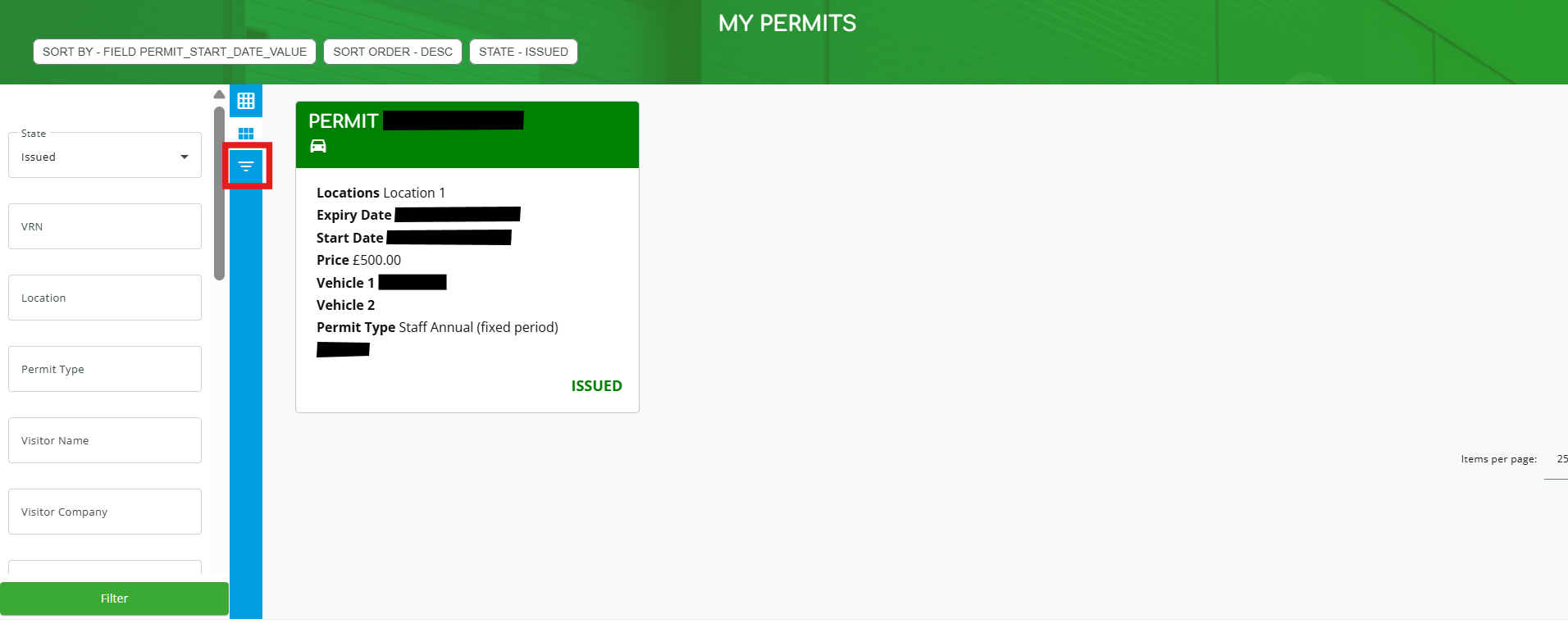
8. If needed, you can filter your permits by clicking the icon highlighted in red below. (Note: Click the icon again to close the filter section.)
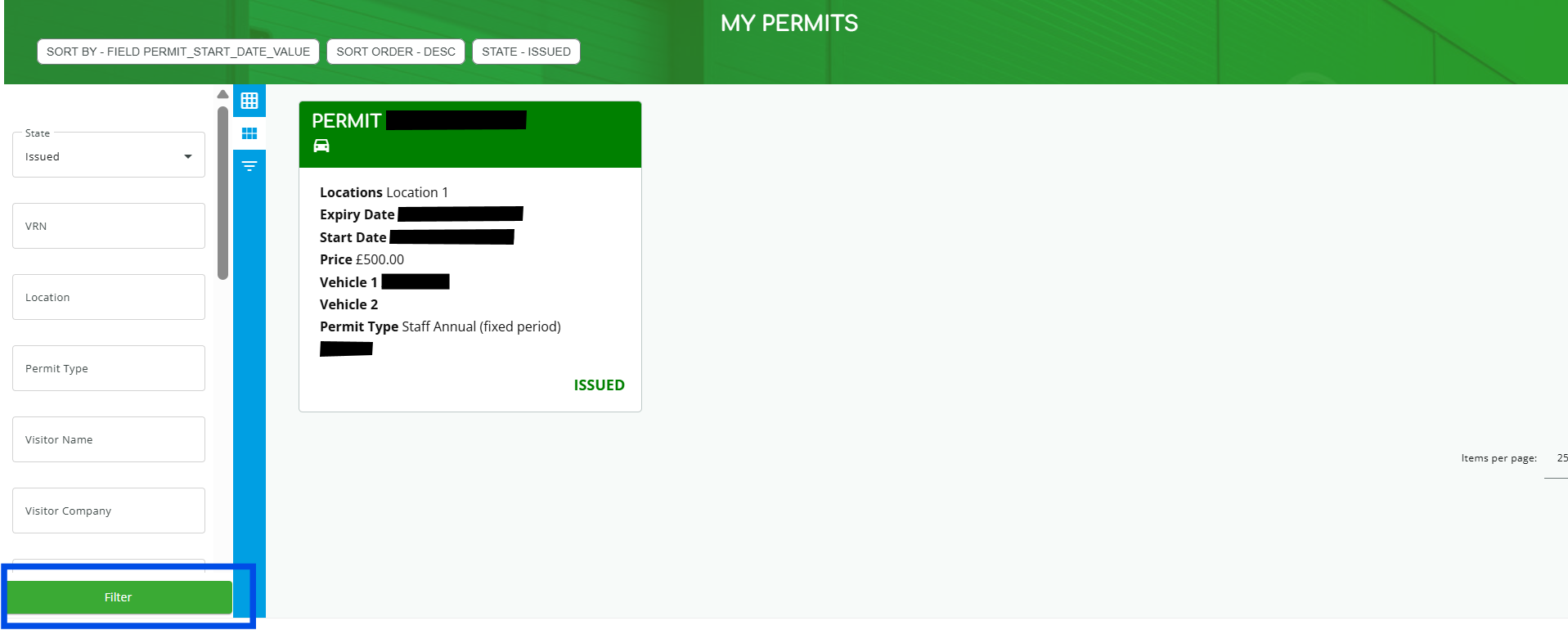
9. After selecting your filter criteria, click “Filter” at the bottom of the page to apply your search results.
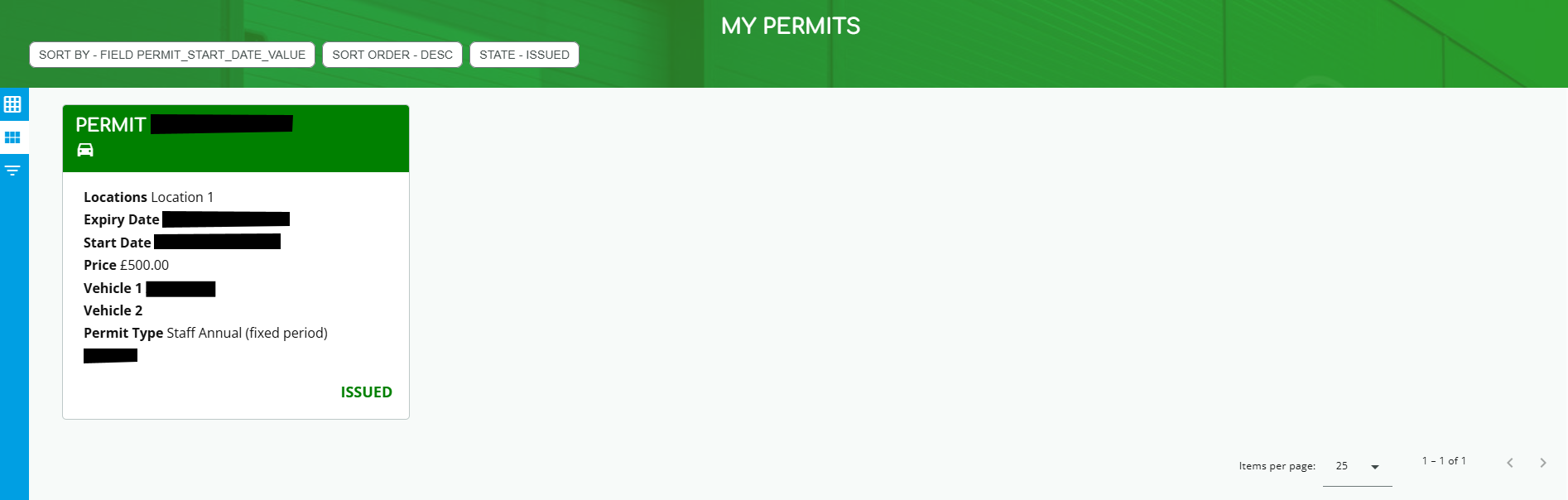
10. Click on and open the permit linked to the vehicle you want to update.
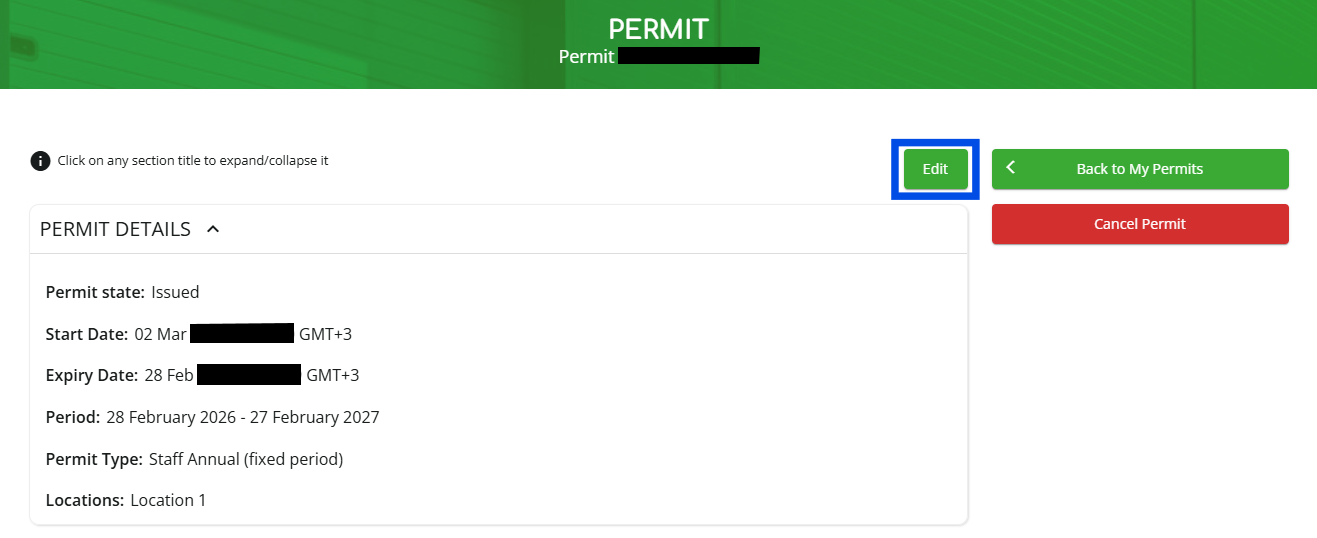
11. Click on “Edit”.
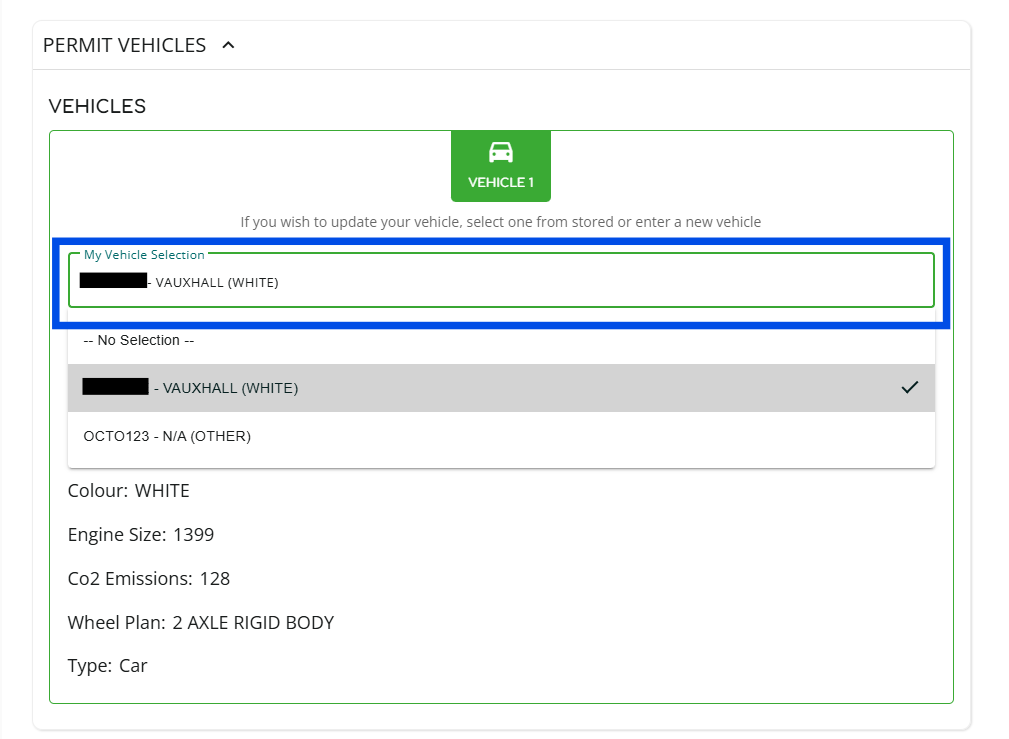
12. In the “PERMIT VEHICLES” section, click “My Vehicles Selection” if you have any vehicles stored, then select the vehicle you want to switch to. If not, continue to Step 13.
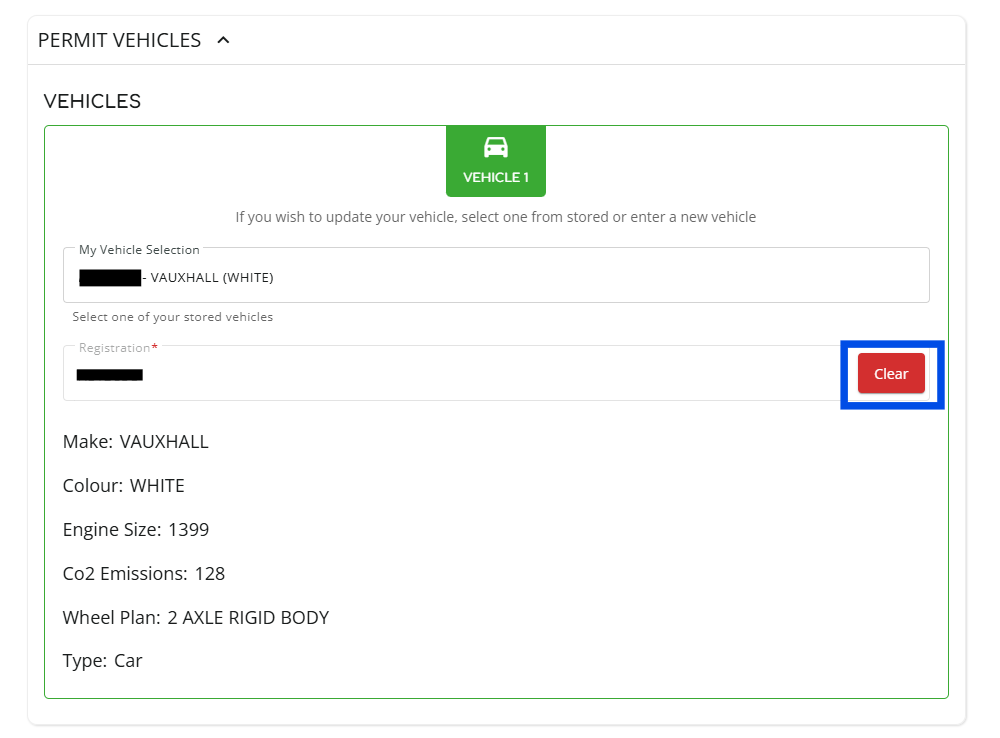
13. Click “Clear” to remove an existing vehicle.
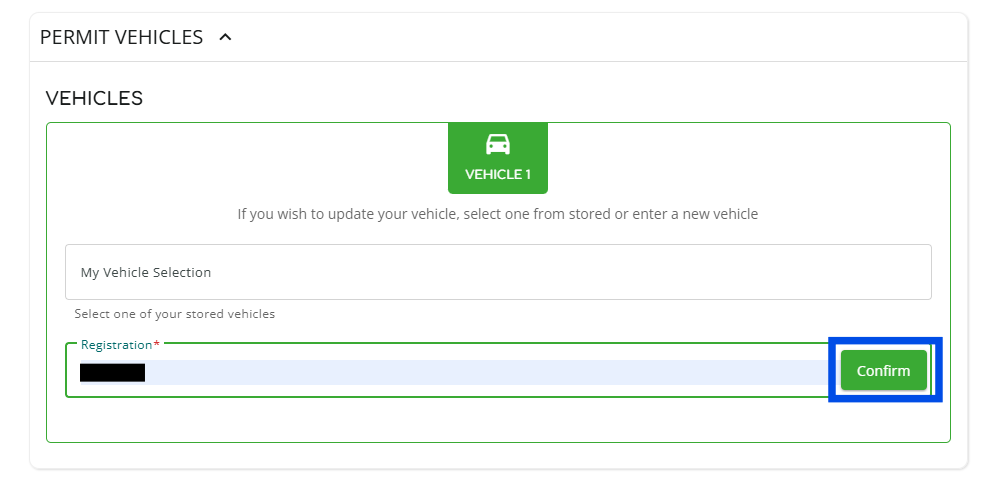
14. Enter the new vehicle registration you wish to add and click “Confirm.”
15. After confirming the details, scroll up and click on “Update Permit.”