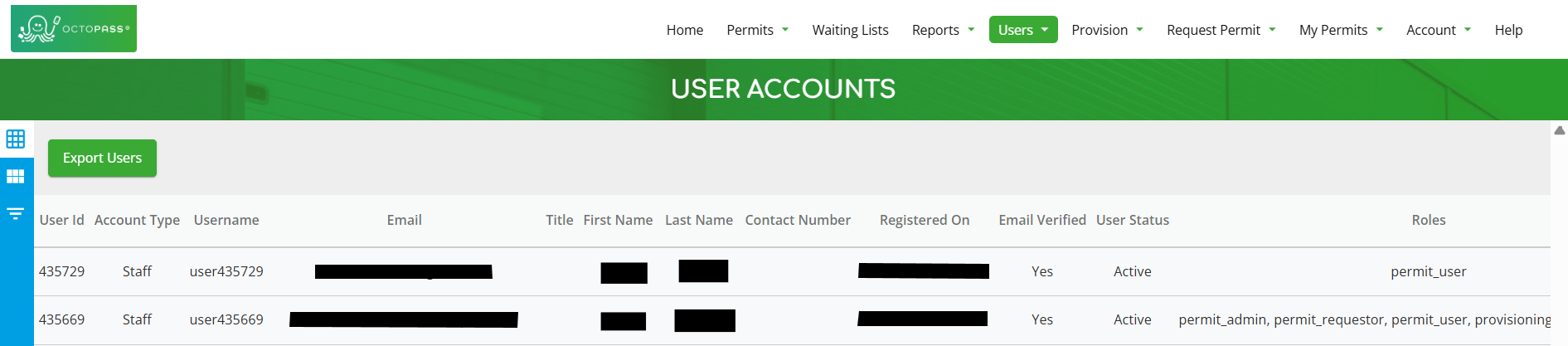
1. After logging in as a user with the “User Administrator” role assigned, click on “Users -> User Accounts,” as shown below.

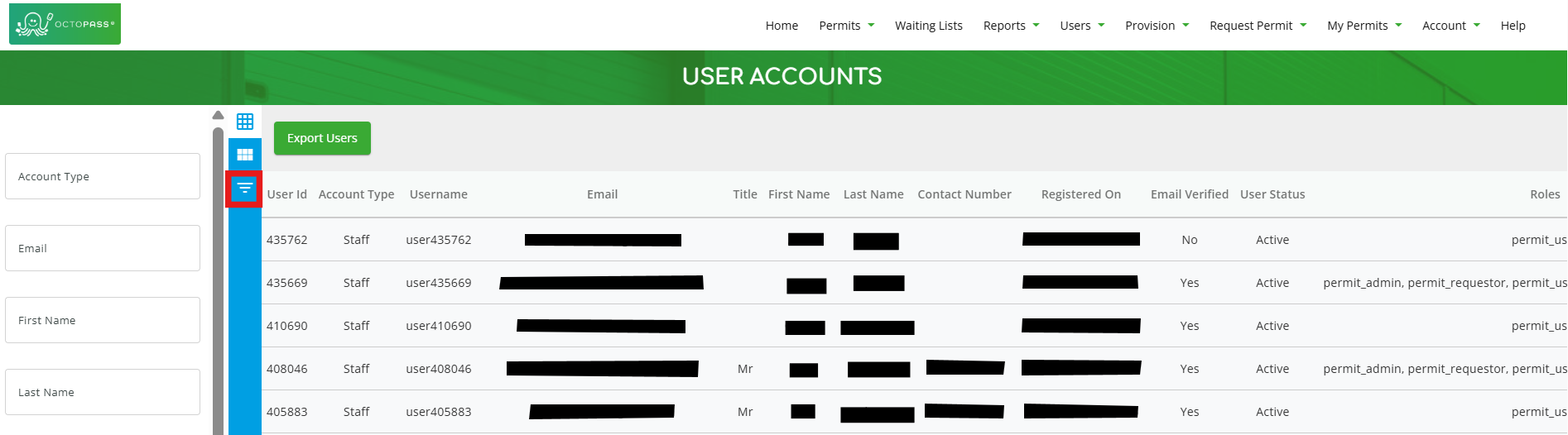
2. If you need to, you can filter for specific users by clicking the icon highlighted in red below. (Note: You can click the icon again to close the filter section).
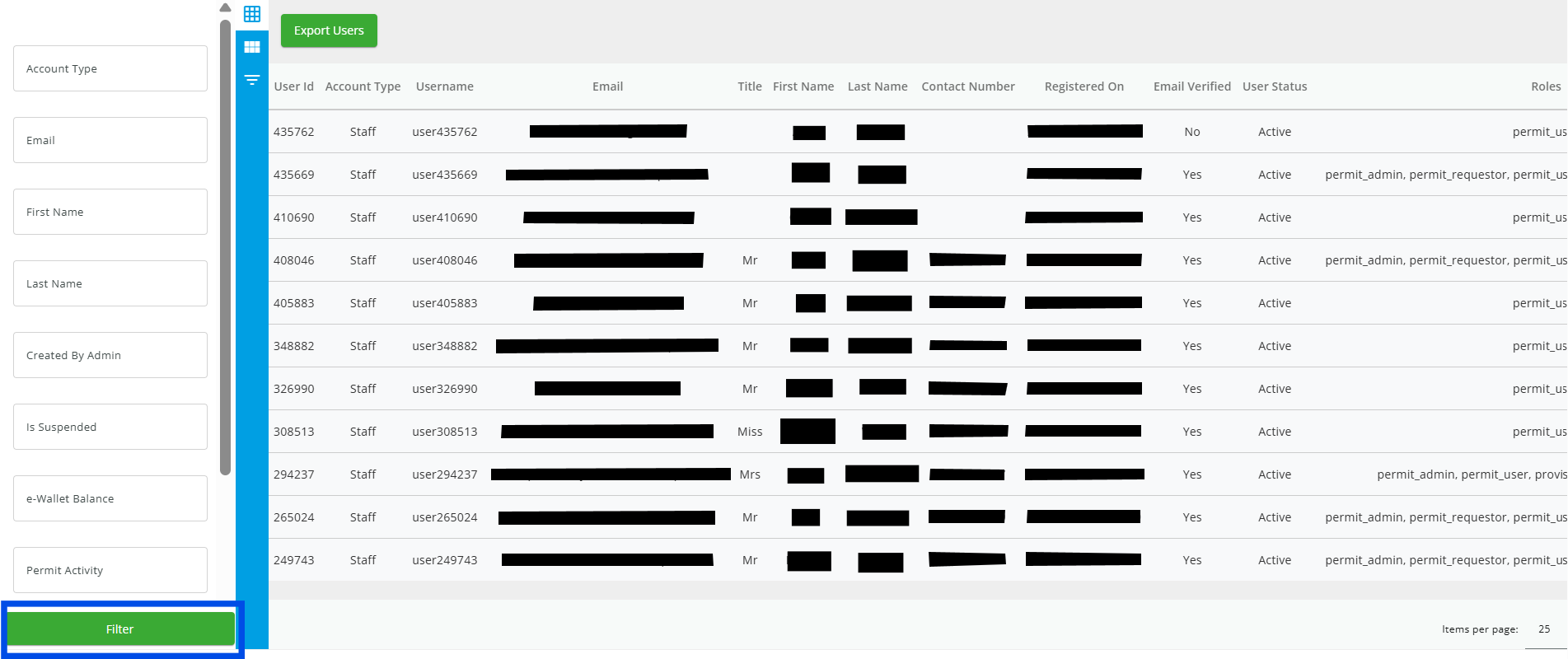
3. Once you’re done using any of the fields in the filter section, click the “Filter” button at the bottom of the page to apply the filters.
4. Select the user whose password you want to update.
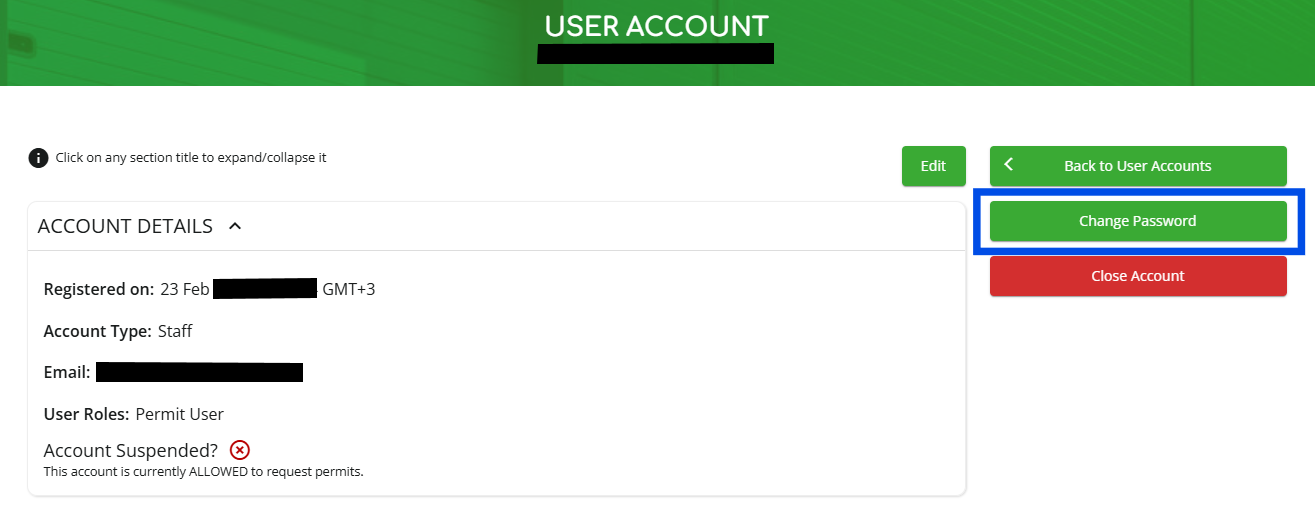
5. Click on the “Change Password” button.
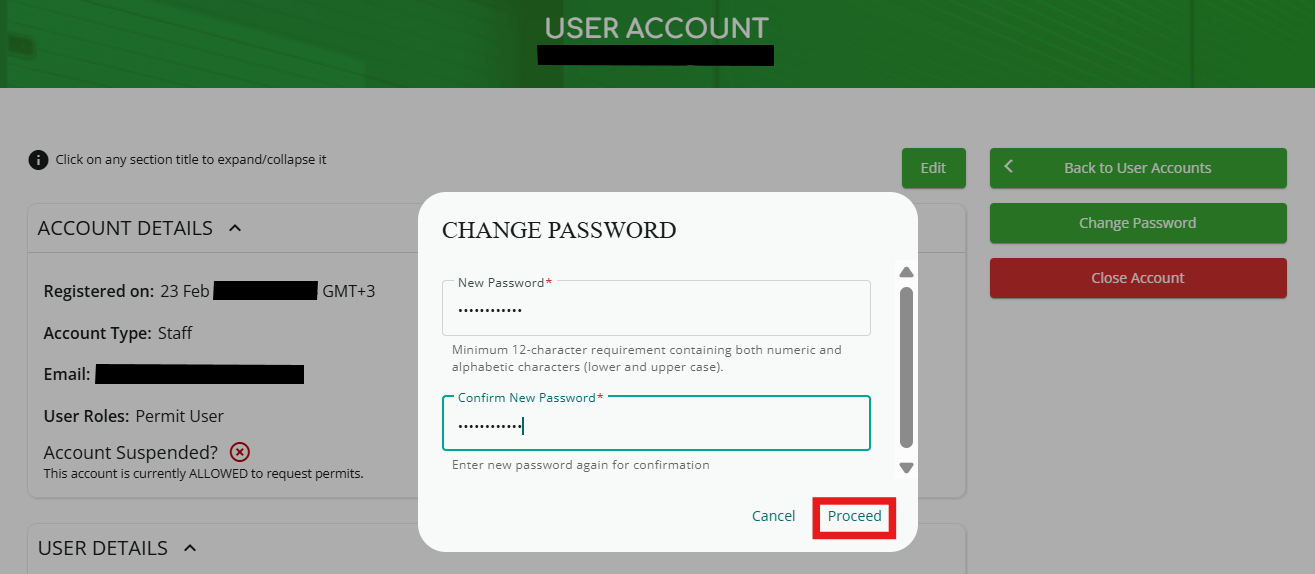
6. A pop-up will appear. Enter the new password, confirm it, and click “Proceed” at the bottom. (NOTE: The “Proceed” button will turn light blue once all fields are complete.)