Periods without an application window
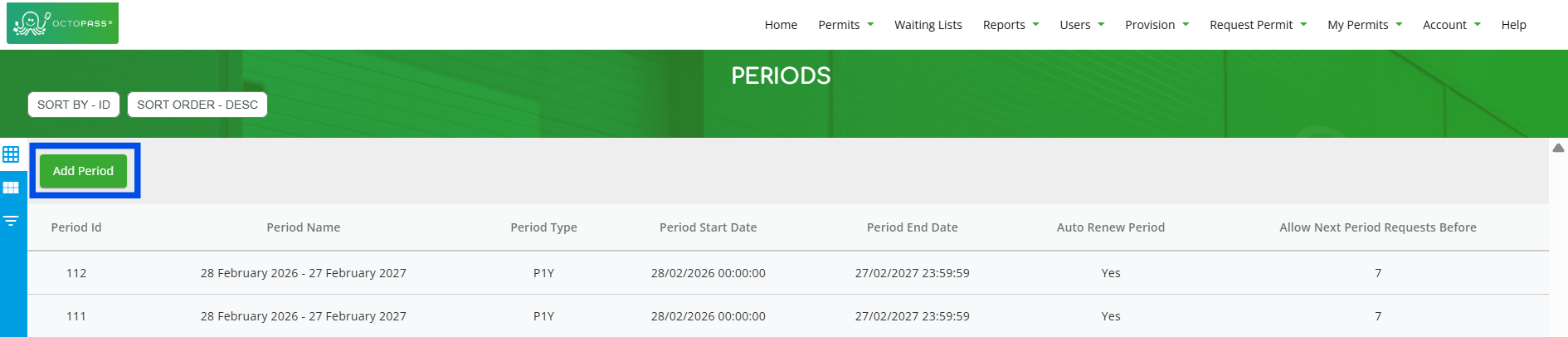
1. Once logged into the portal as an administrator, click on 'Provision -> Periods'.

2. Click the 'Add Period' button.
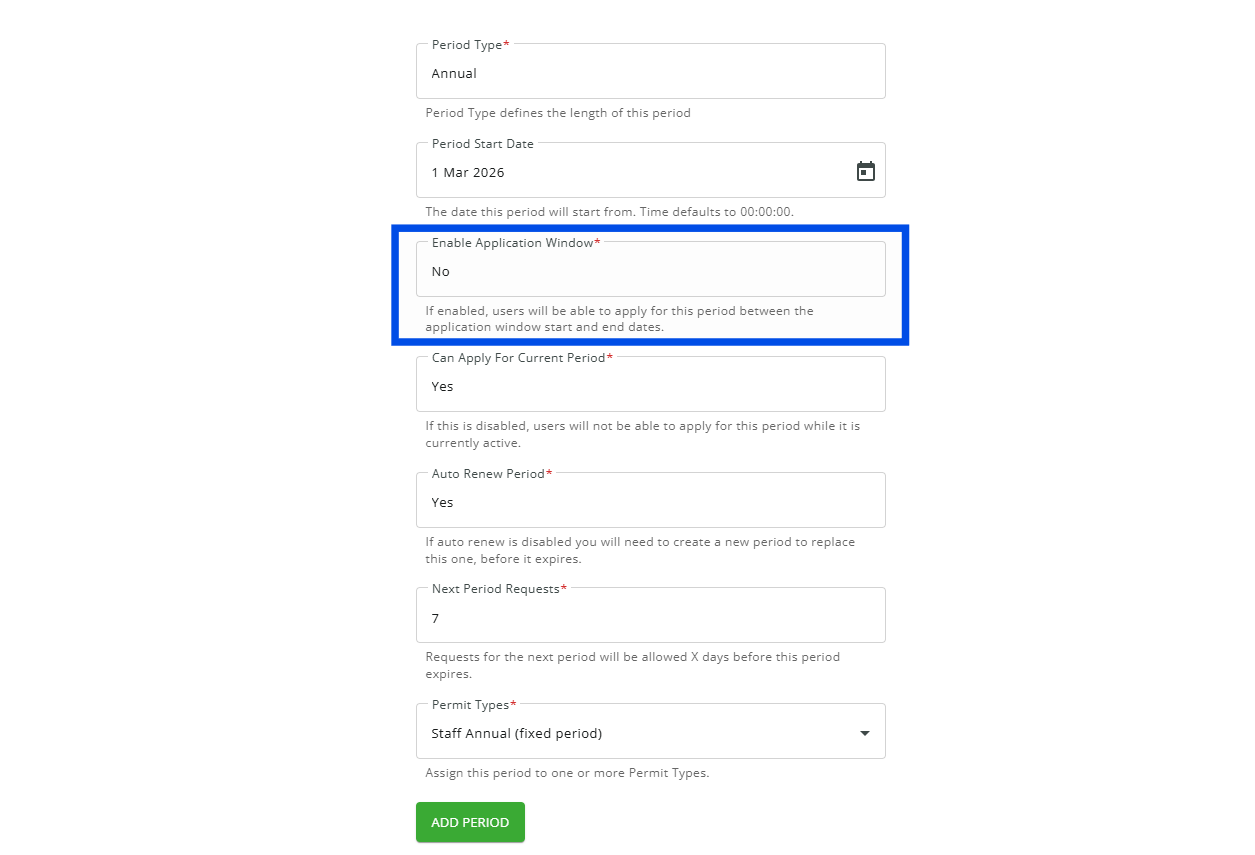
3. Under 'Enable Application Window,' select 'No.'
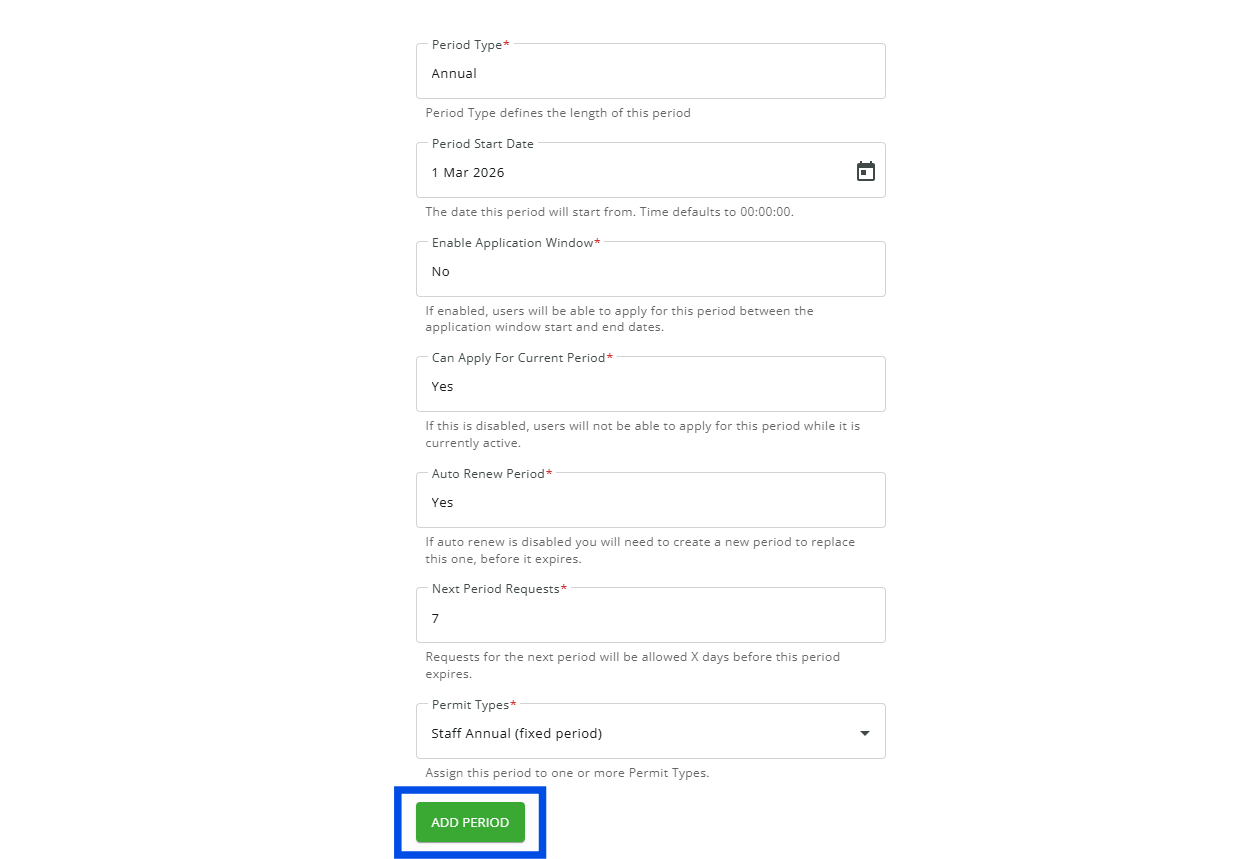
4. Fill in all the remaining details and once done click on the 'ADD PERIOD' button found at the bottom of the page. (Note: The “ADD PERIOD” button will turn green once you’ve filled in all the fields. If it’s still grey, please scroll up and check that nothing is missing.)
Periods with an application window
1. Follow Steps 1 and 2 in 'Periods without an Application Window.'
2. Under 'Enable Application Window,' select 'Yes.'
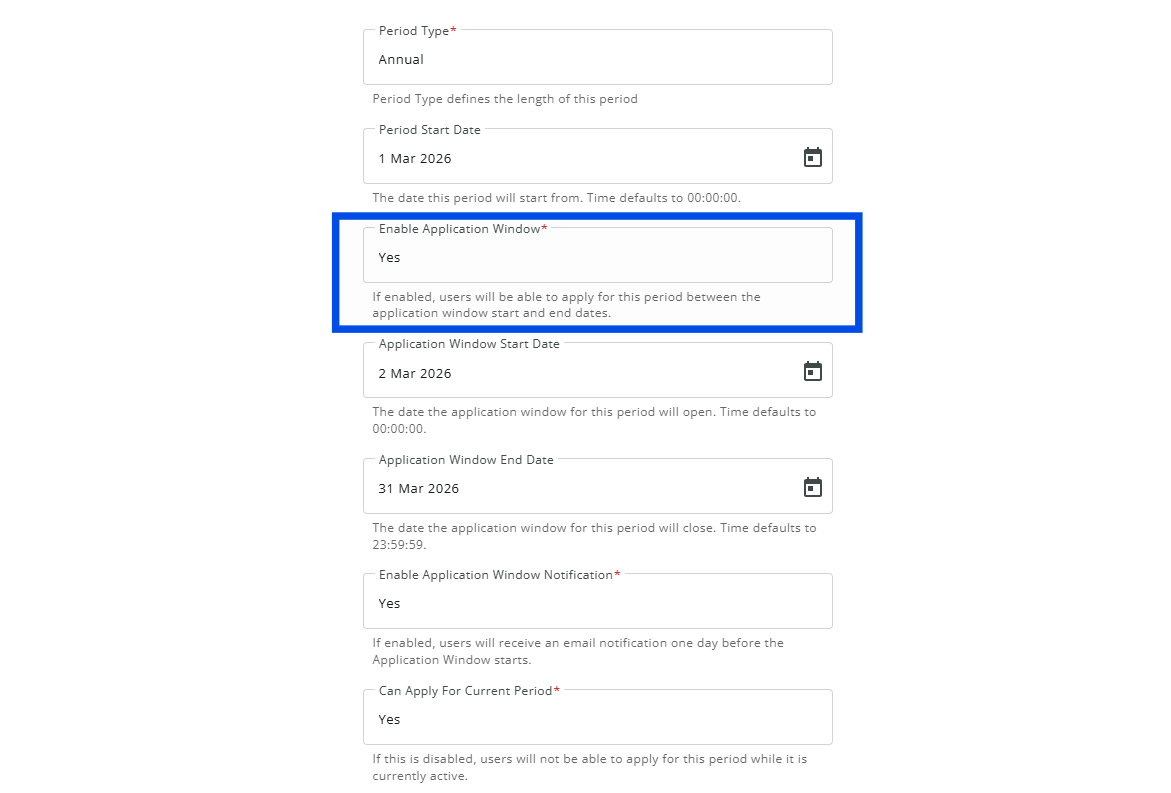
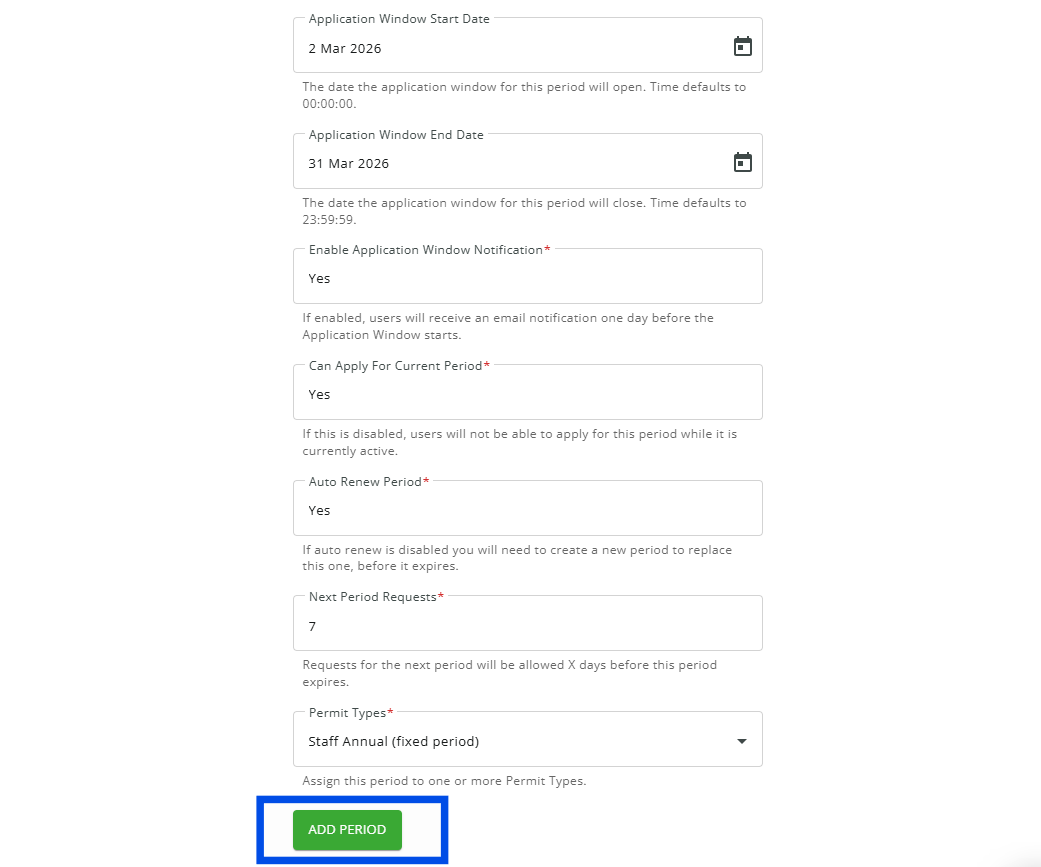
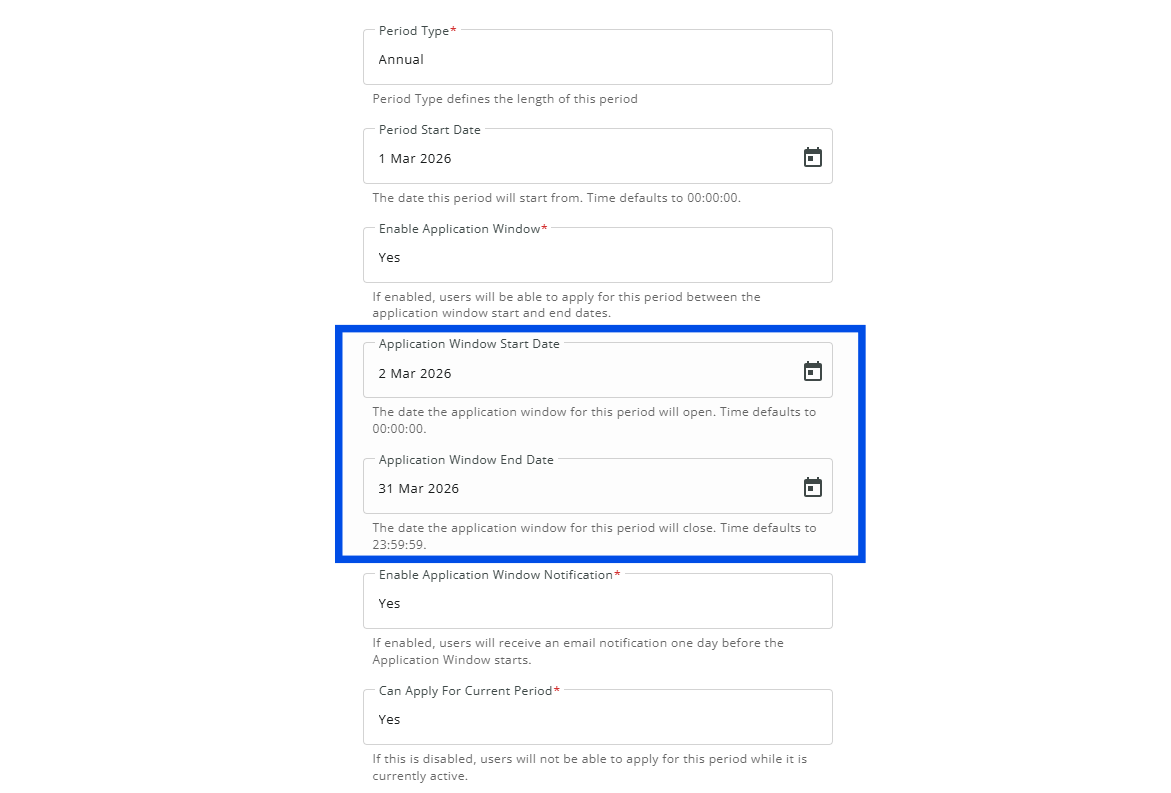
3. Under 'Application Window Start Date' and 'Application Window End Date' ensure you select the dates that you wish for the window to be available for.
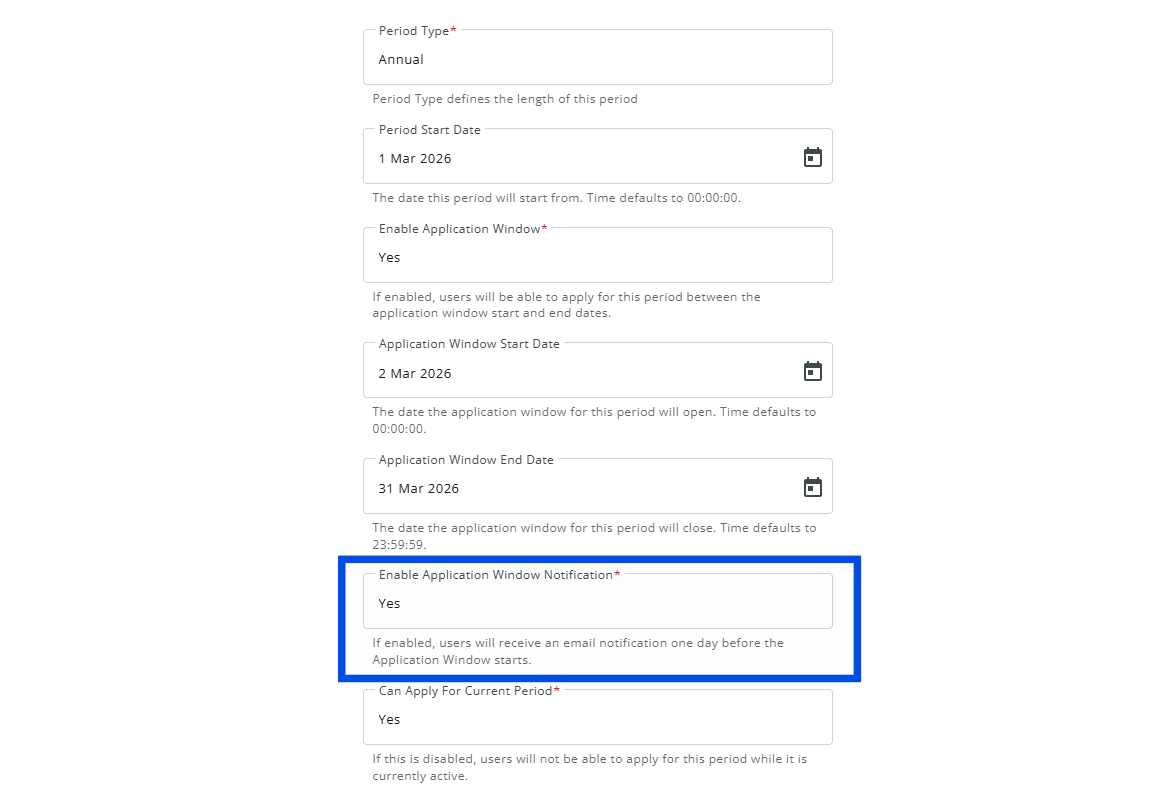
4. If desired you can also configure the 'Enable Application Window Notification' setting. Doing this is optional but enabling it ahead of time will mean that an email is sent out one day before the start date of the application window. This email informs users that the application window will be opening.
4. Fill in all the remaining details and once done click on the 'ADD PERIOD' button found at the bottom of the page. (Note: The “ADD PERIOD” button will turn green once you’ve filled in all the fields. If it’s still grey, please scroll up and check that nothing is missing.)