
If a user within your organisation reports that they have not received their portal registration or activation PIN code via email, Administrators can retrieve the code directly from the administrative dashboard.
Reviewing and providing the code using the steps below allows you to resolve the user's login issue immediately without needing to escalate the ticket.
How to Retrieve a User's Verification PIN
As an Administrator, you can find the missing code by following these steps:
- Log in to your Portal
- Go to the main menu and select Users, then click on User Accounts.
- Search for the affected user by entering their name or email address.
- Open the user's account profile.
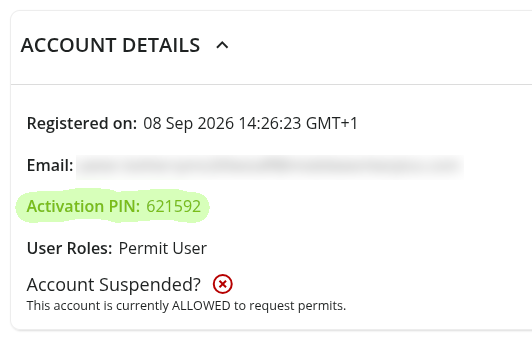
- Navigate to the Account Details section.
- Locate the active verification code in the Activation PIN field (as shown in the reference image below).
- Copy this code and provide it directly to the user so they can complete their activation.
Further Troubleshooting
Before escalating the issue to our technical support team, please ensure you check the following:
- Spam and Junk Filters: Ask the user to check their email spam, junk, or quarantine folders, as automated portal emails can sometimes be misrouted by local mail filters.
- Email Accuracy: Double-check the user's account profile to ensure their email address is spelt correctly and contains no typos.
- System-Wide Failures: If you notice multiple users across your entire organisation are failing to receive emails at the same time, please raise a ticket with your internal IT department first to ensure your company's mail gateway is not blocking incoming automated emails from the portal.